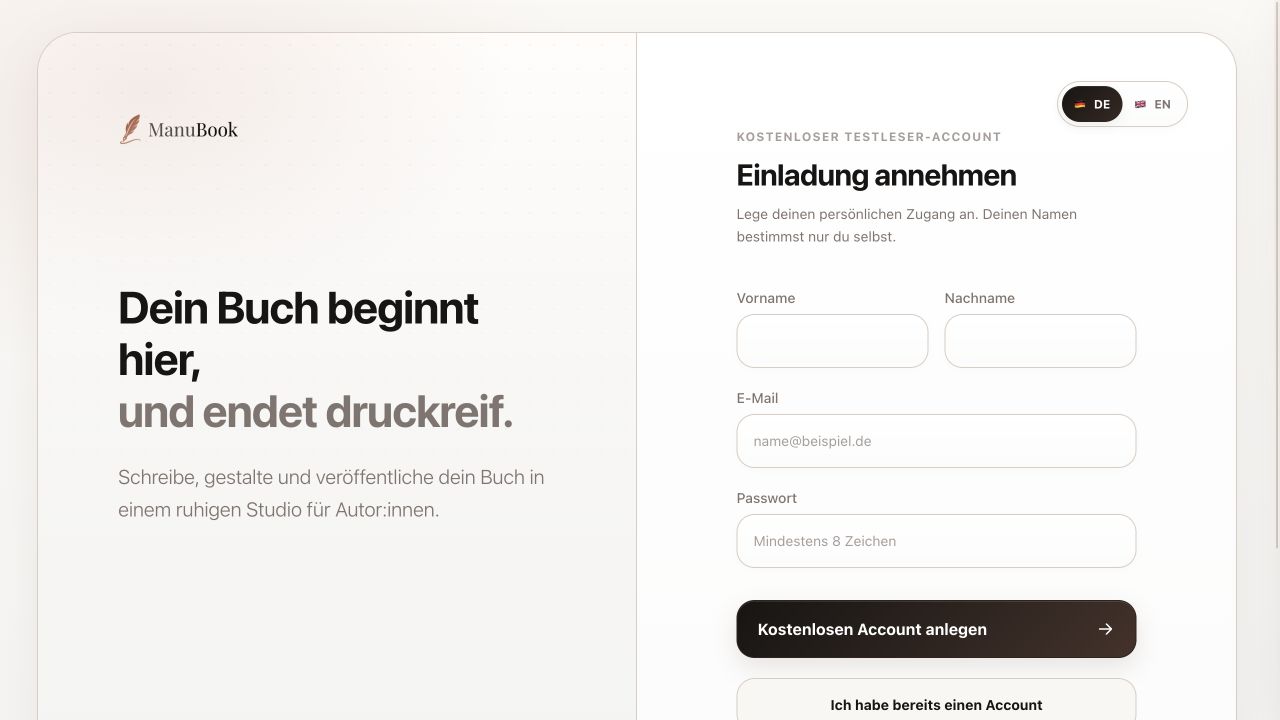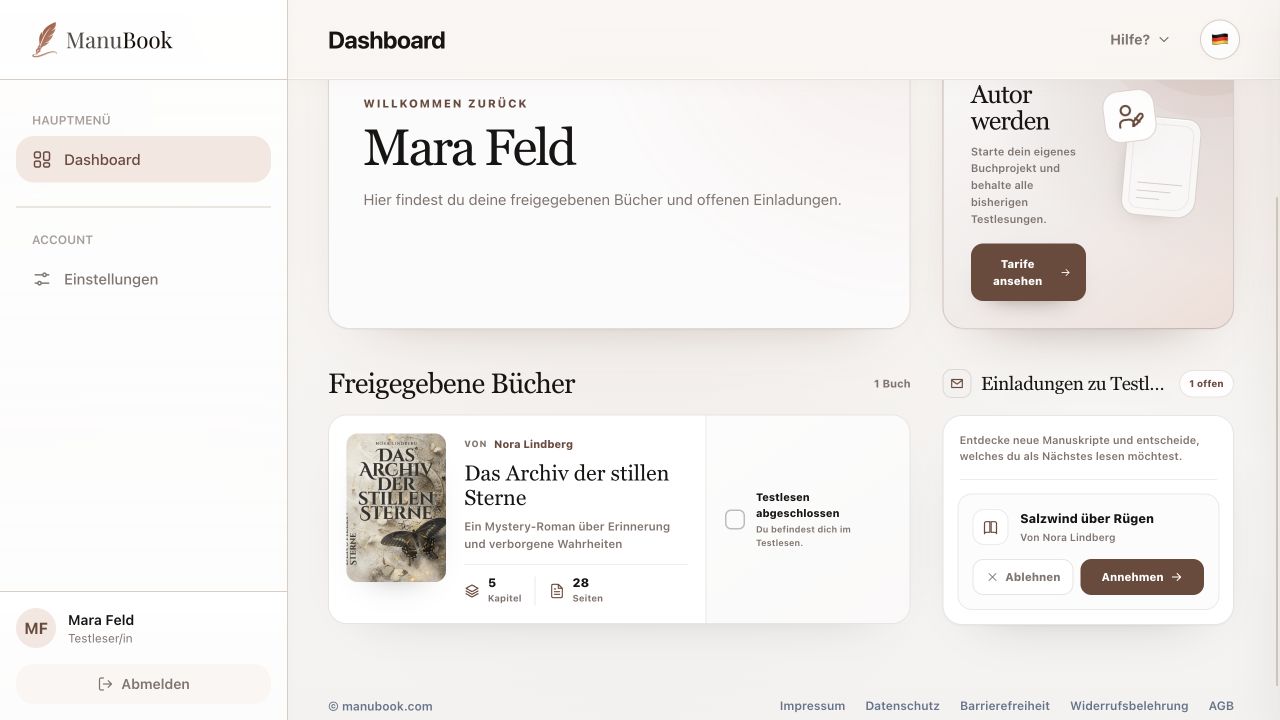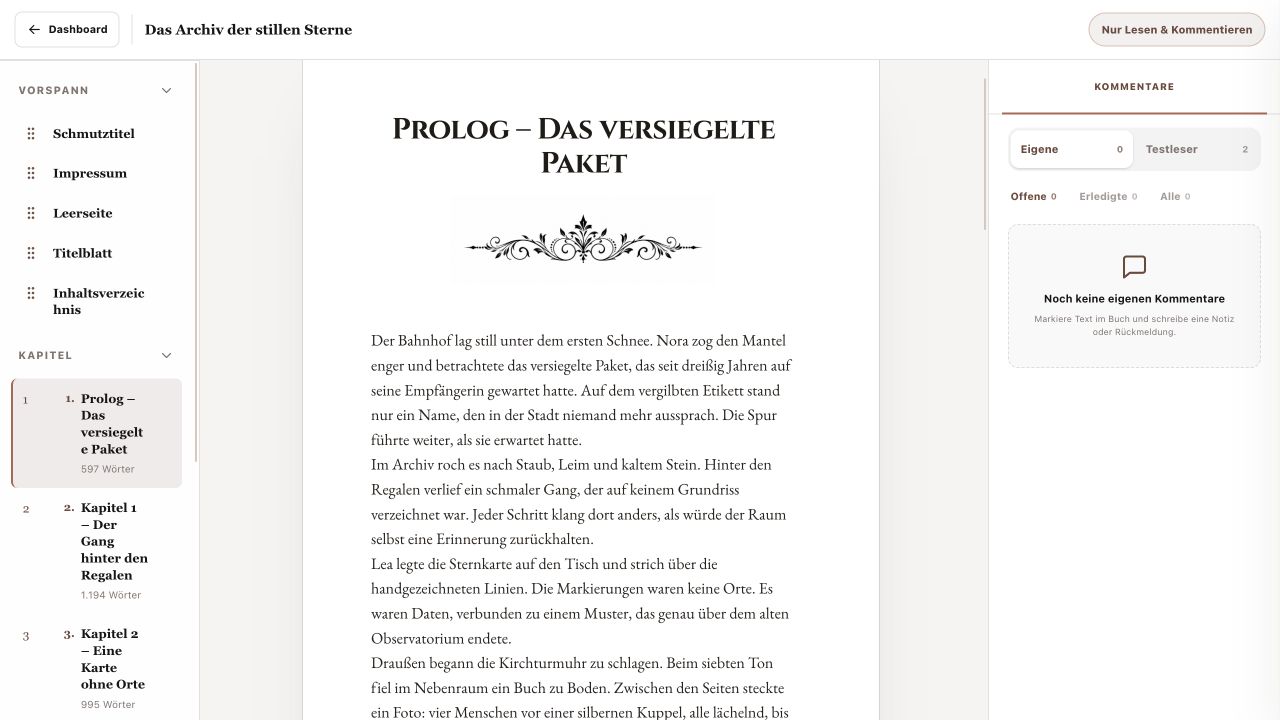
Feedback is attached directly to a passage. The author can therefore see immediately which sentence or section prompted your response.
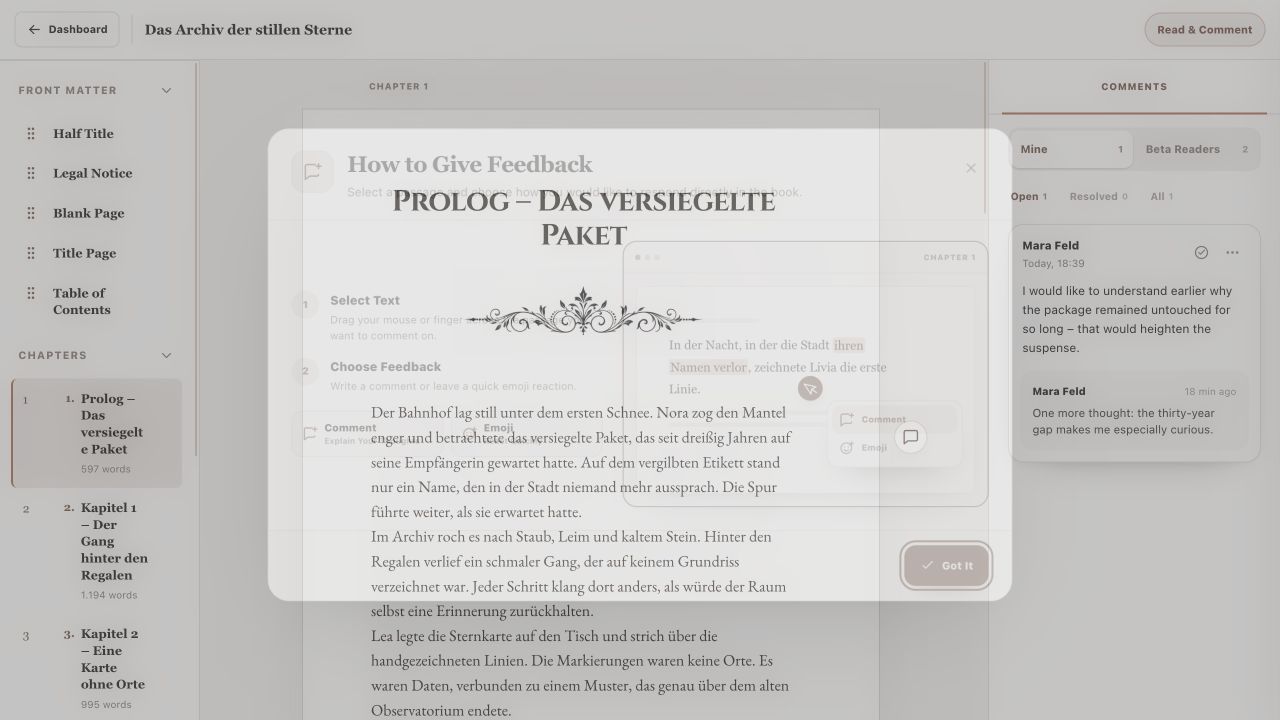
1. Select a passage
On desktop, drag the mouse across the relevant text. On a touchscreen, press and hold a word, then use the left and right arrow actions to extend the selection. The feedback toolbar appears beside the selection.
2. Send a comment
Choose “Add Comment”. Write your feedback in “What stands out to you in this passage?” and select “Send Comment”. A comment can contain up to 4,000 characters and then appears under My Comments.
- Select the passage.
- Choose “Add Comment”.
- Write specific feedback.
- Save it with “Send Comment”.
3. React with an emoji
Alternatively choose “React with Emoji” and select one of the offered reactions, such as thumbs up, heart, laughter, surprise, applause, an idea or a question mark. The reaction is stored immediately on the selected passage.
- An emoji works well for a quick emotional reaction.
- Use a written comment when the author should understand why a passage works or remains unclear.
Your feedback is clearly attached to the relevant manuscript passage.