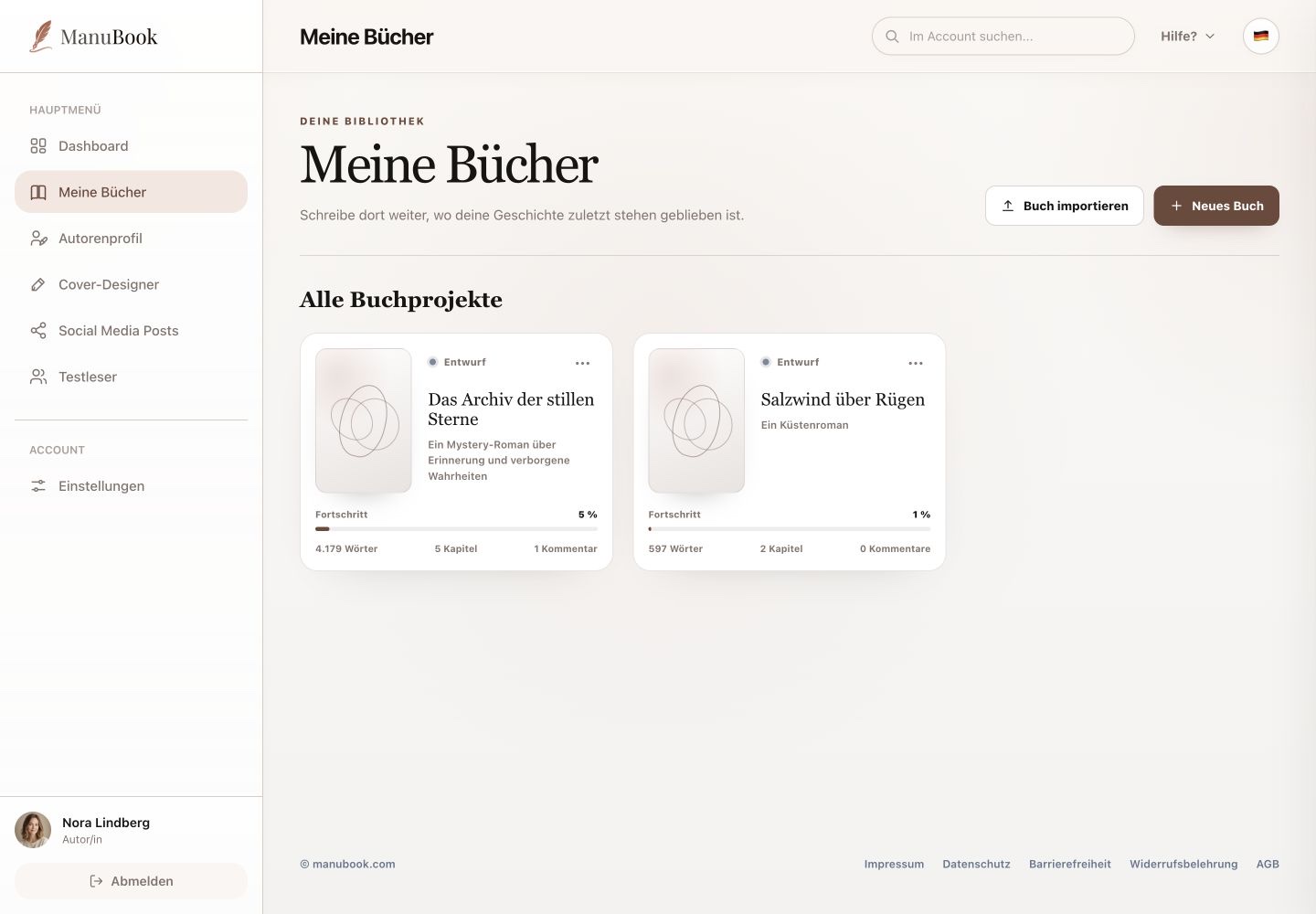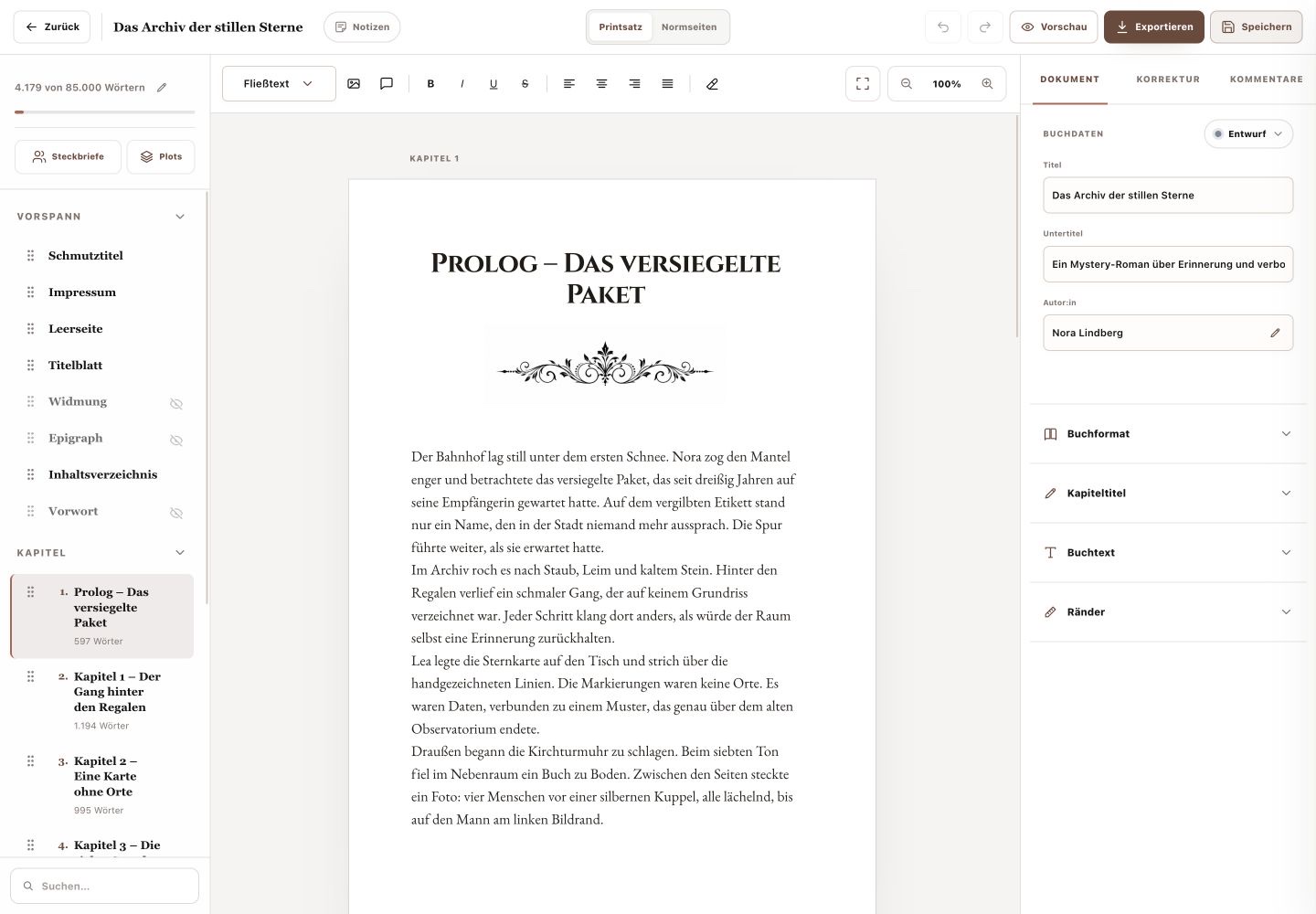
“Notes” opens a board over the writing studio. It is a free-form space for thoughts, scenes and research related to the current book.
Menu pathMy Books → Open book → Notes
1. Create the right element
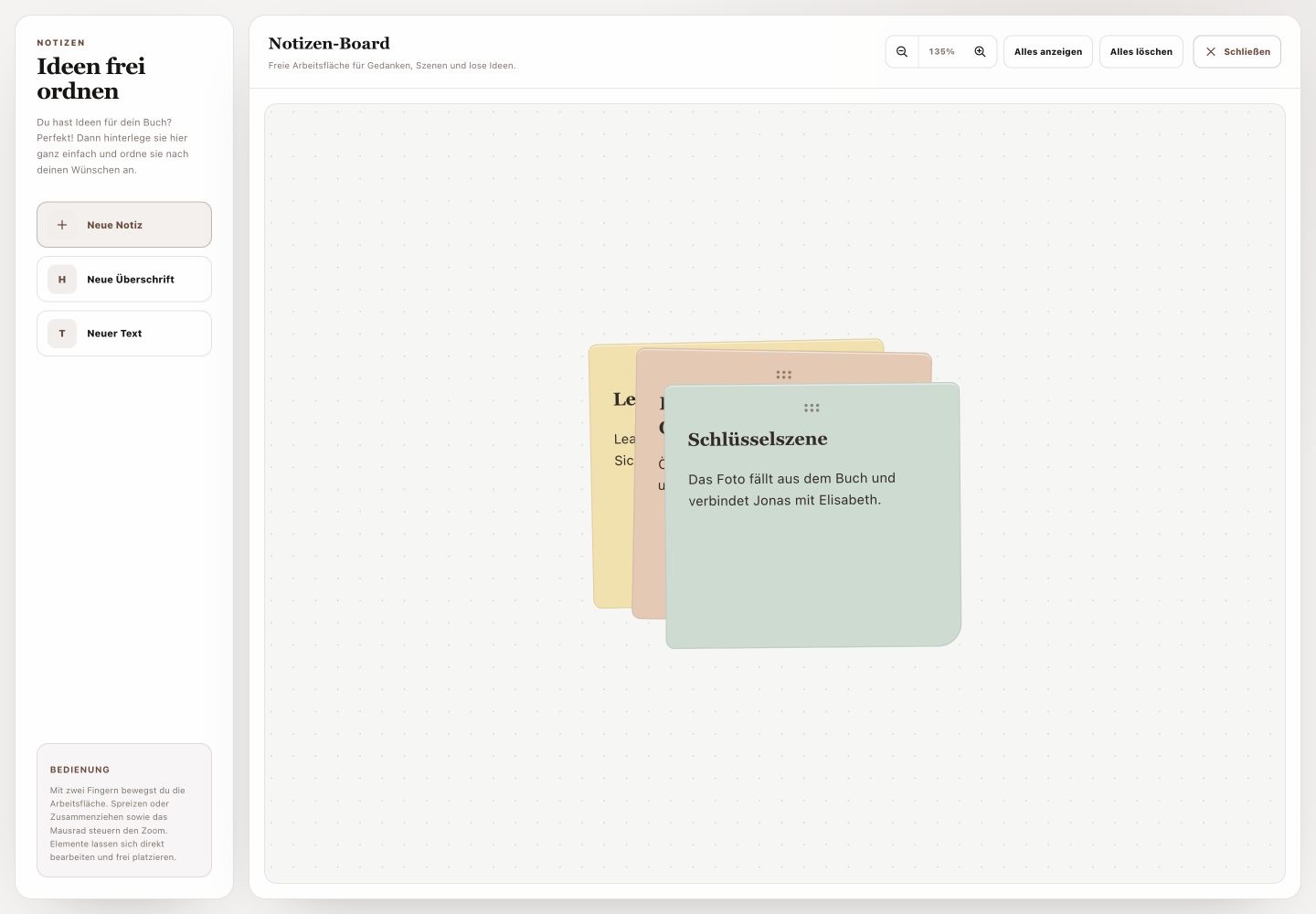
“New Note” creates a note card. “New Heading” and “New Text” help label larger areas or hold longer information. Every element can be edited directly.
2. Arrange the canvas
Drag elements freely with the mouse. Use two fingers to move the canvas; pinch, spread or use the mouse wheel to control zoom. “Show all” brings every element back into view.
- Create an element.
- Edit its title and content directly.
- Drag it to the intended position.
3. Tidy up without a false status
Individual elements have a delete action. “Delete all” removes the whole board. The board does not provide colours, type selection or a completed status; delete a finished note or update its text.
Done
Your planning remains visually organised without cluttering the manuscript.