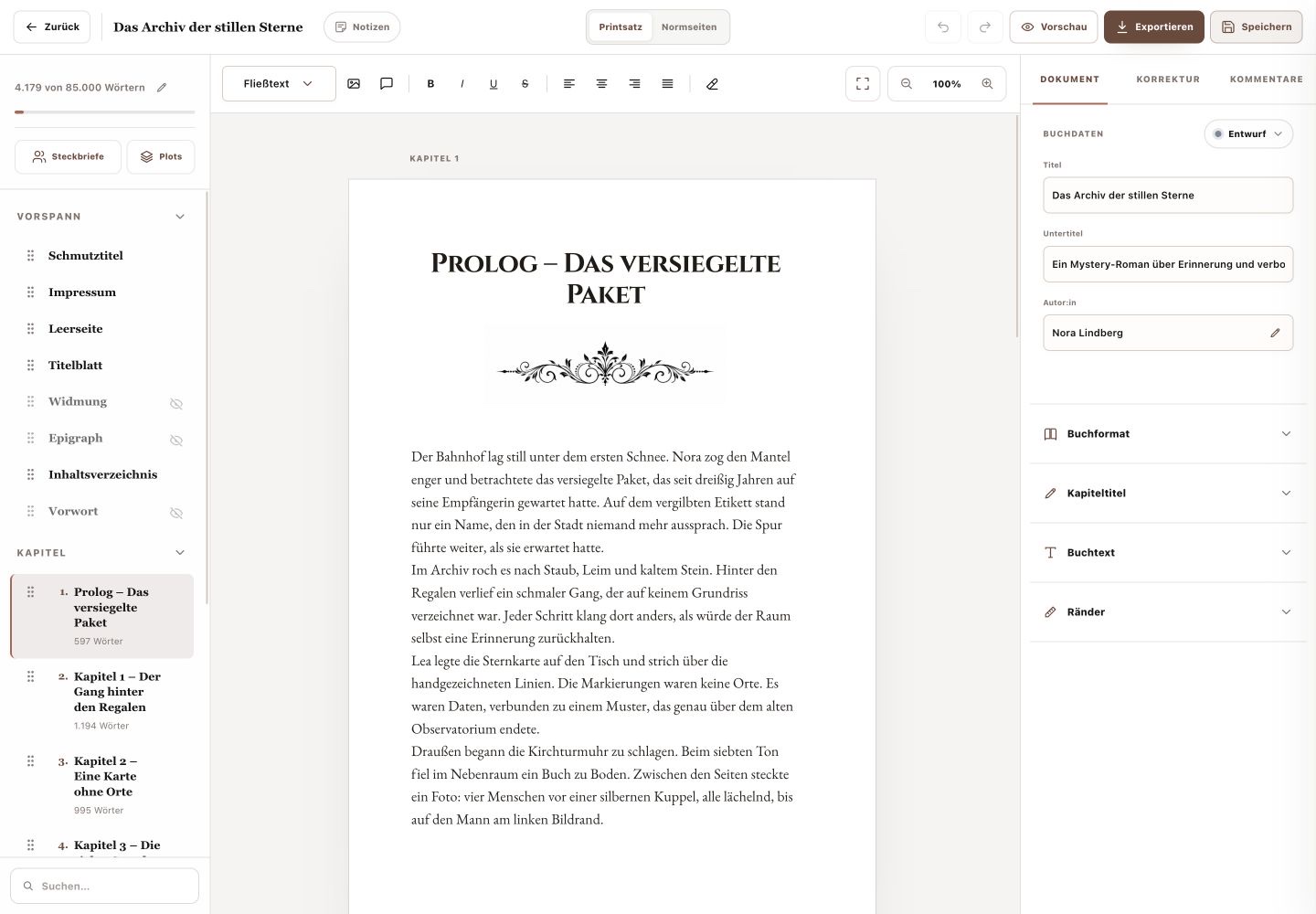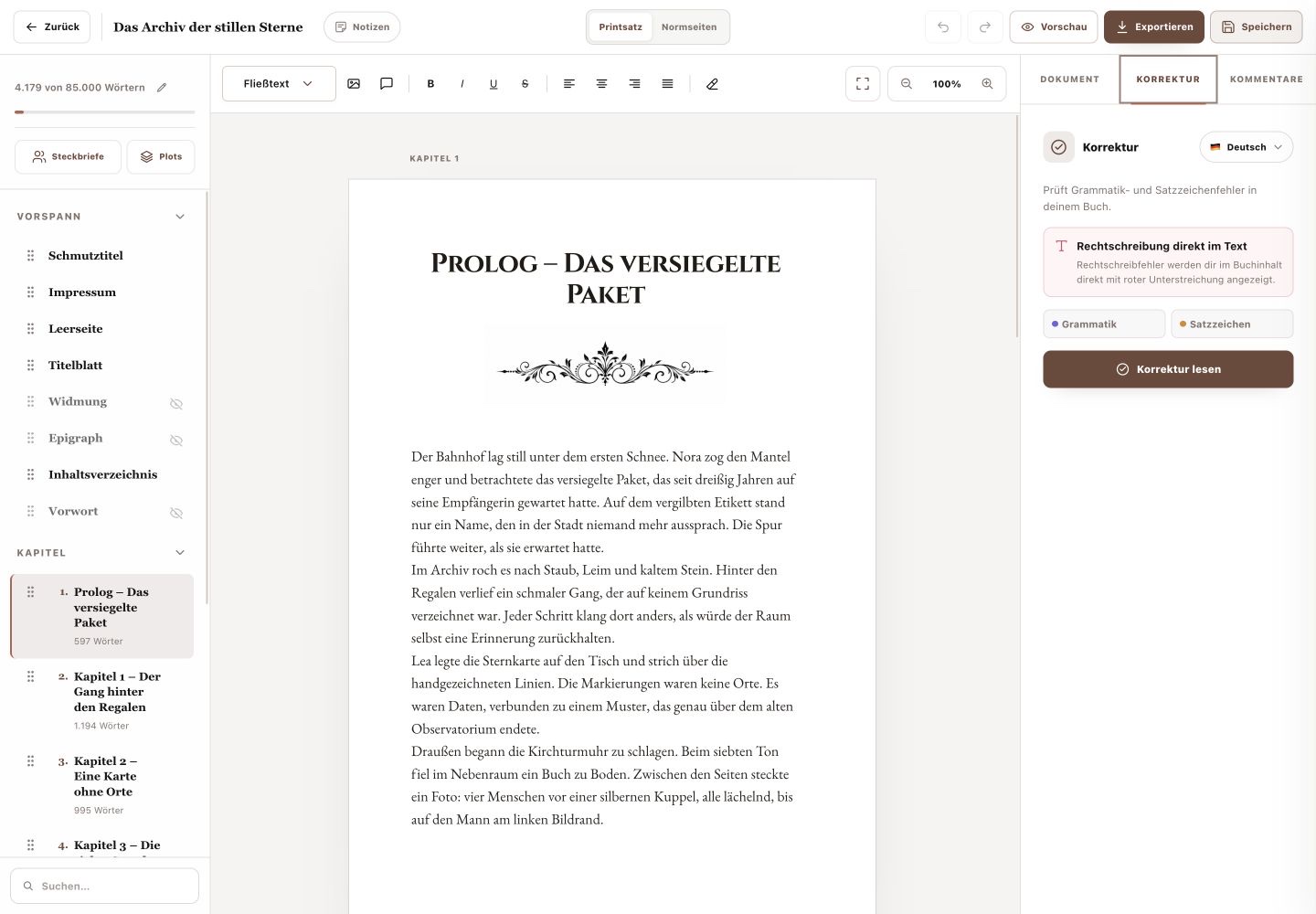
My Books offers two separate routes: “New Book” for an empty project and “Import Book” for an existing DOCX file.
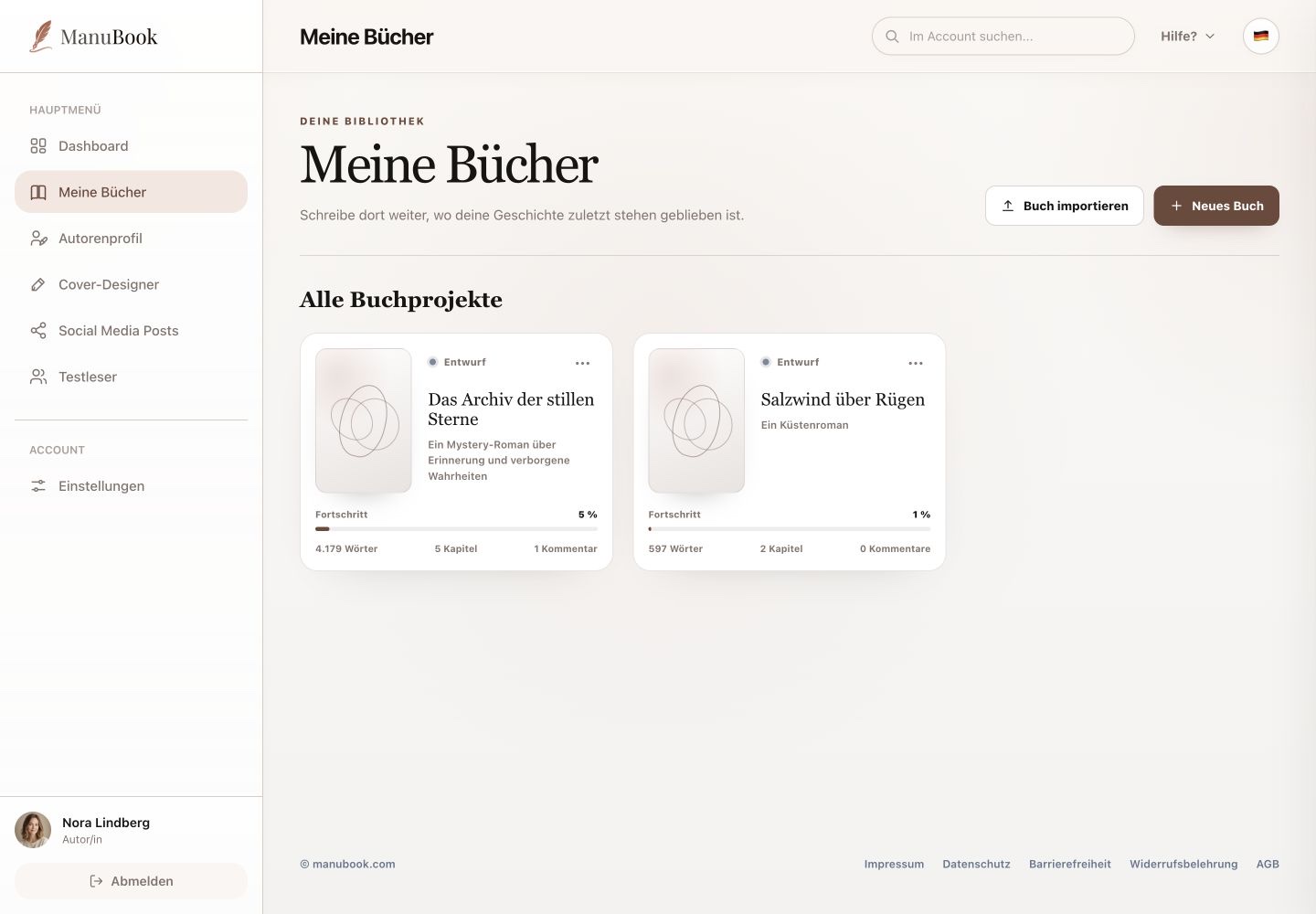
1. Create an empty book
Select “New Book”. The “Start a new book” window asks only for a title. After selecting “Create Book”, ManuBook opens the project. Subtitle, author name, status, word target and book design are handled later in the writing studio.
- Select “New Book”.
- Enter a book title.
- Confirm with “Create Book”.
2. Import a Word manuscript
Select “Import Book” and choose a DOCX file up to 25 MB. ManuBook analyses chapters, front matter, back matter, text and images and converts them into the writing-studio format. Word layout is cleaned up and missing standard pages are added.
3. Review the result
Open the imported book and check chapter titles, order, images and a few representative passages. You can rename, move or delete chapters afterwards. There is no merge-chapters action.
Your new or imported book is ready as a separate project in My Books.