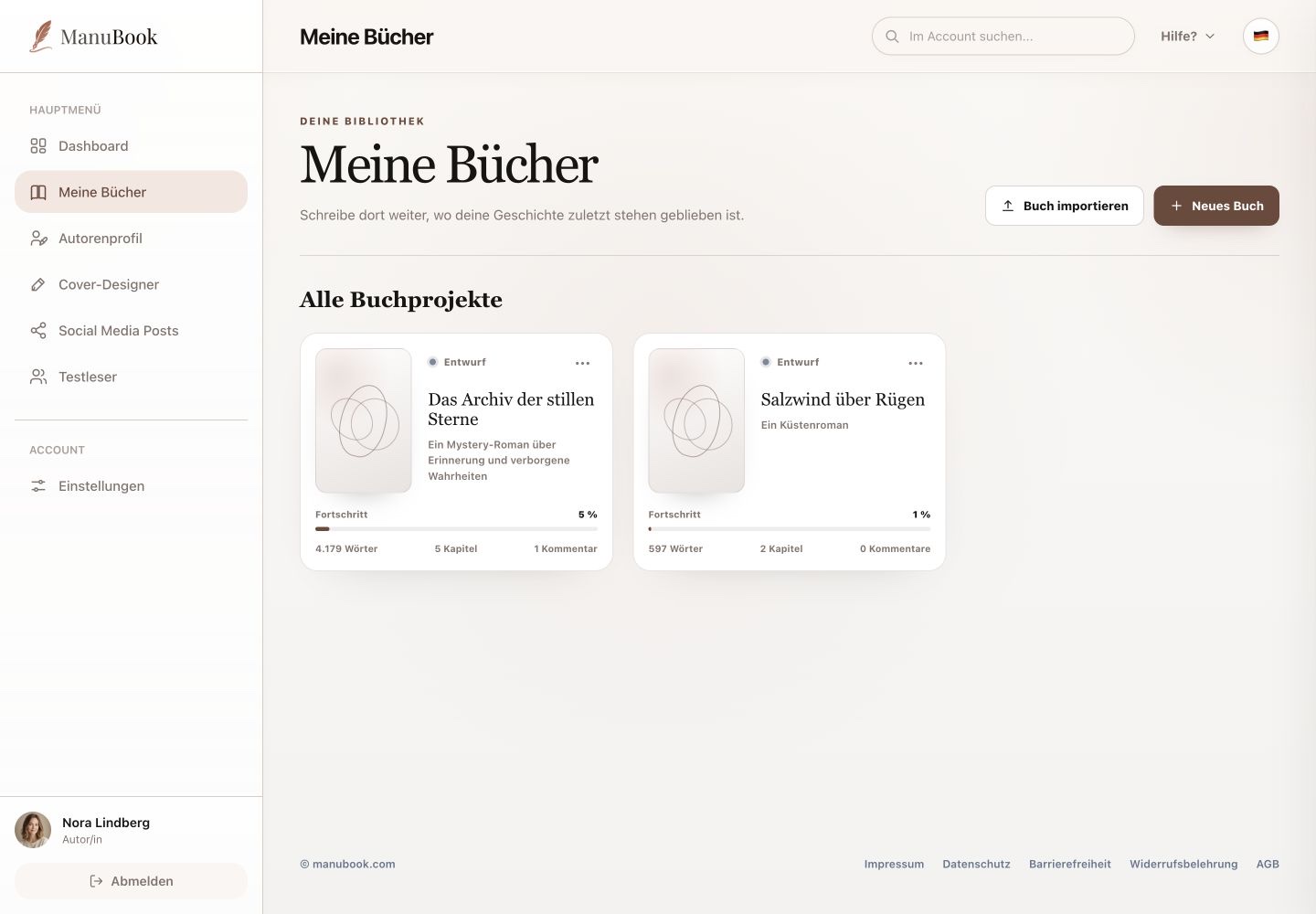
The writing studio combines manuscript structure, page-based editing and book design. All settings apply to the currently open book.
1. Choose a view and chapter
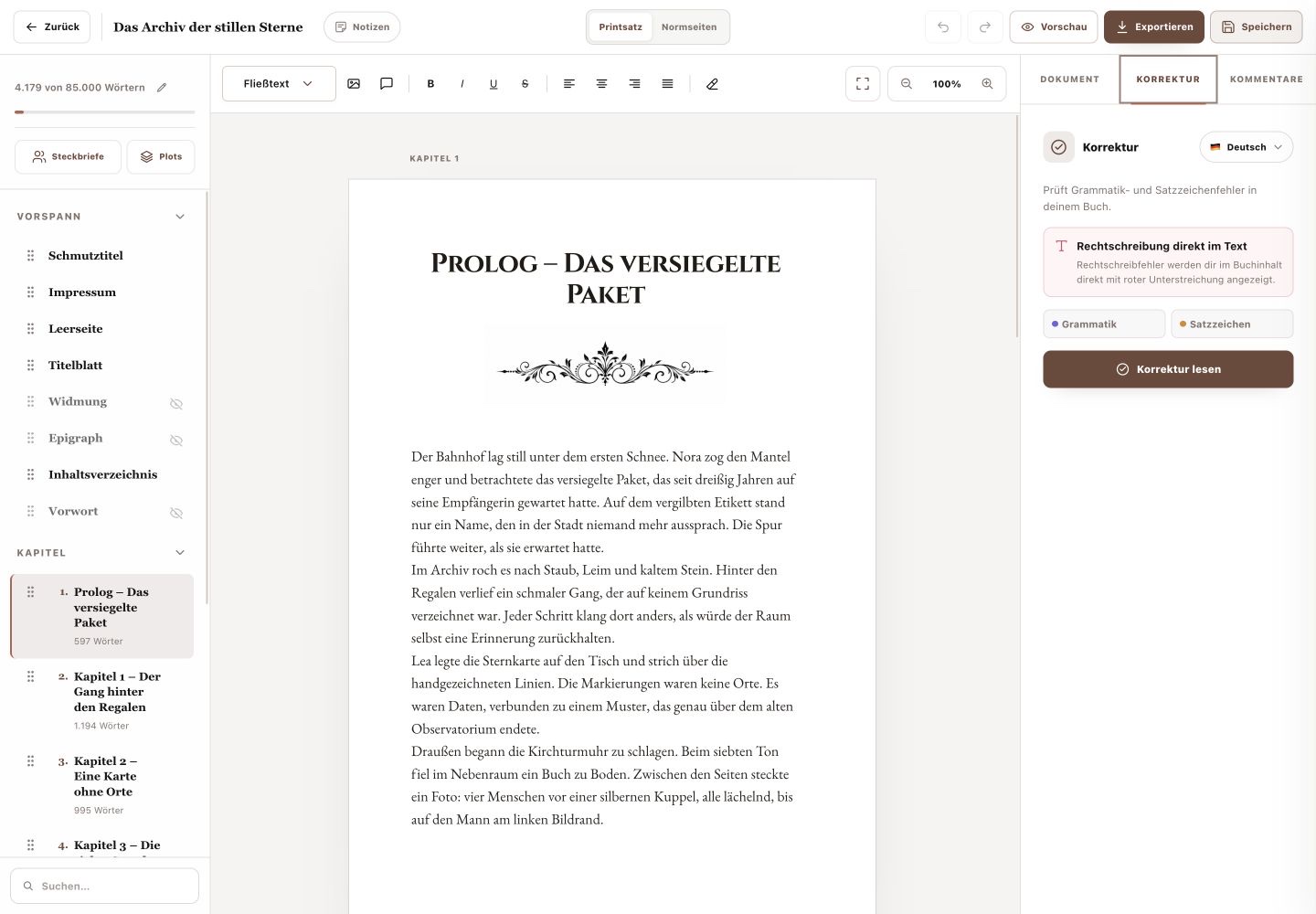
Use “Print Layout” and “Standard Pages” at the top to change the writing view. Select a chapter on the left, then edit its title and text in the centre. Navigation at the end opens the next chapter; zoom changes only your working view.
2. Format text deliberately
The toolbar provides paragraph format, bold, italic, underline, strikethrough, alignment, clear formatting and focus mode. You can also insert images and chat elements. Use formatting sparingly and review the result in Preview.
3. Set book data and typesetting
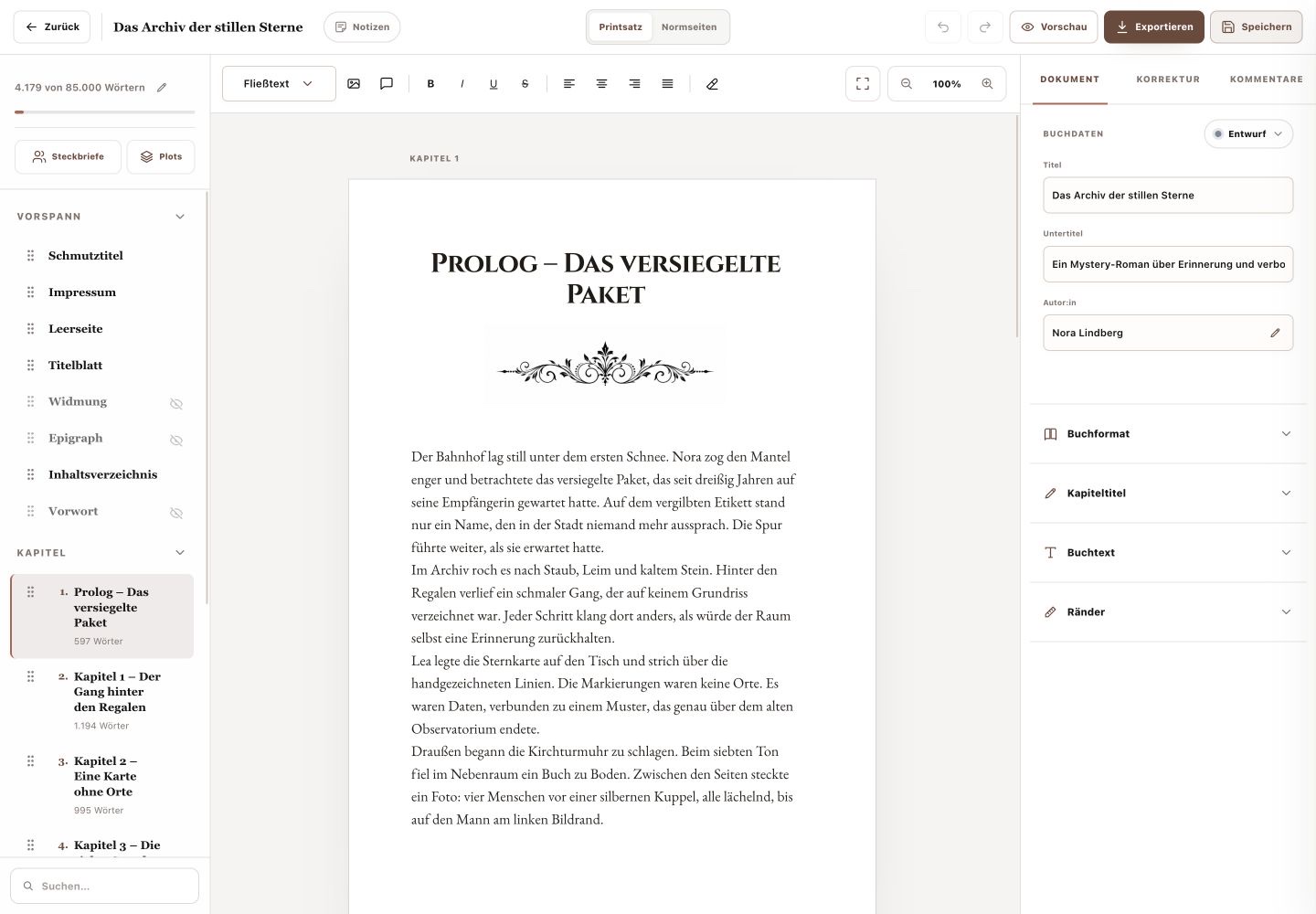
The “Document” tab on the right contains status, title, subtitle and a link to the author display name. Expand “Book Format”, “Chapter Titles”, “Book Text” and “Margins” for typesetting. “Preview” displays the book and “Save” explicitly saves changes; Undo and Redo are available at the top.
- Make your changes.
- Select “Save”.
- Then open Preview or Export.
You can edit text and book design in one studio and save changes deliberately.