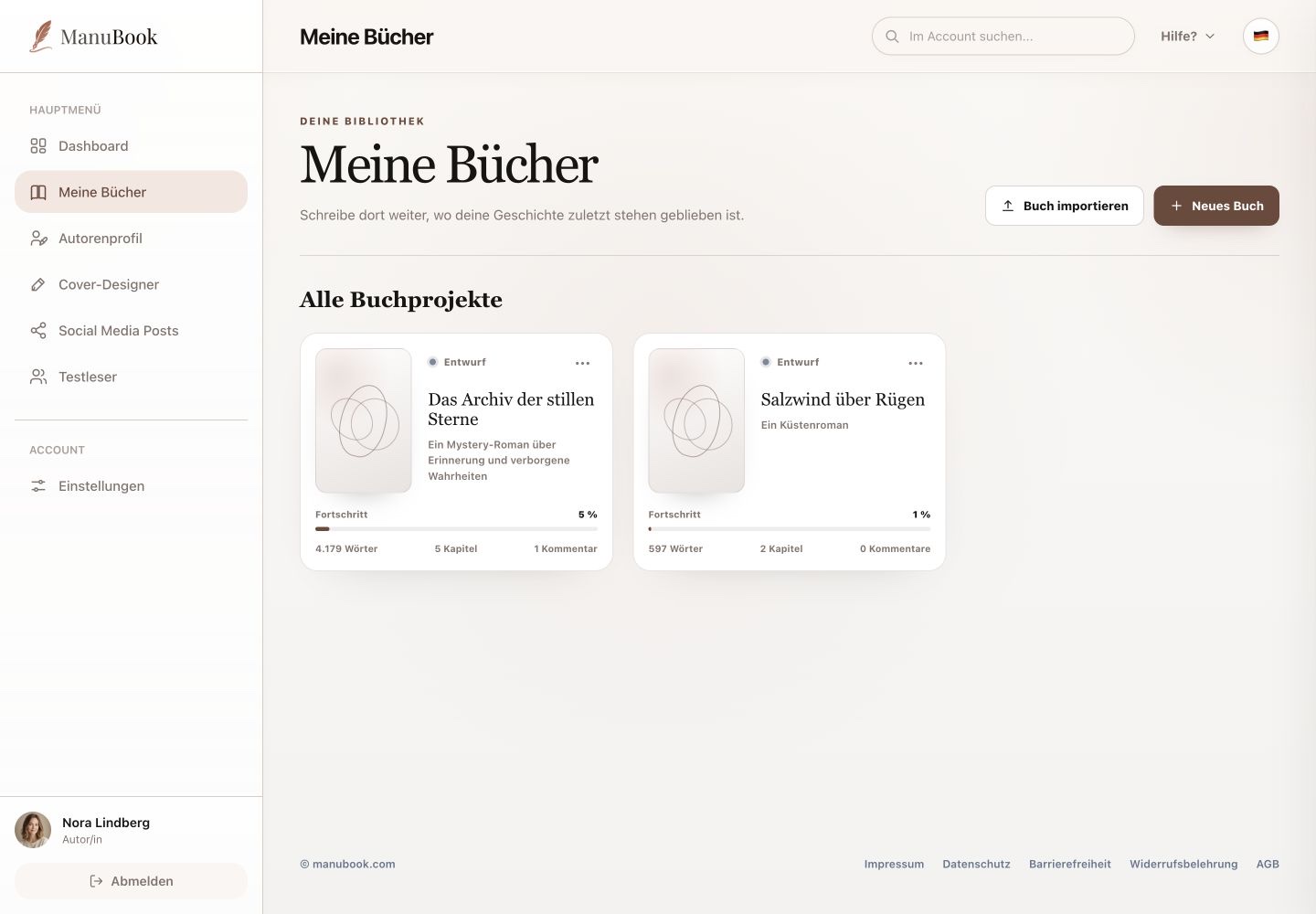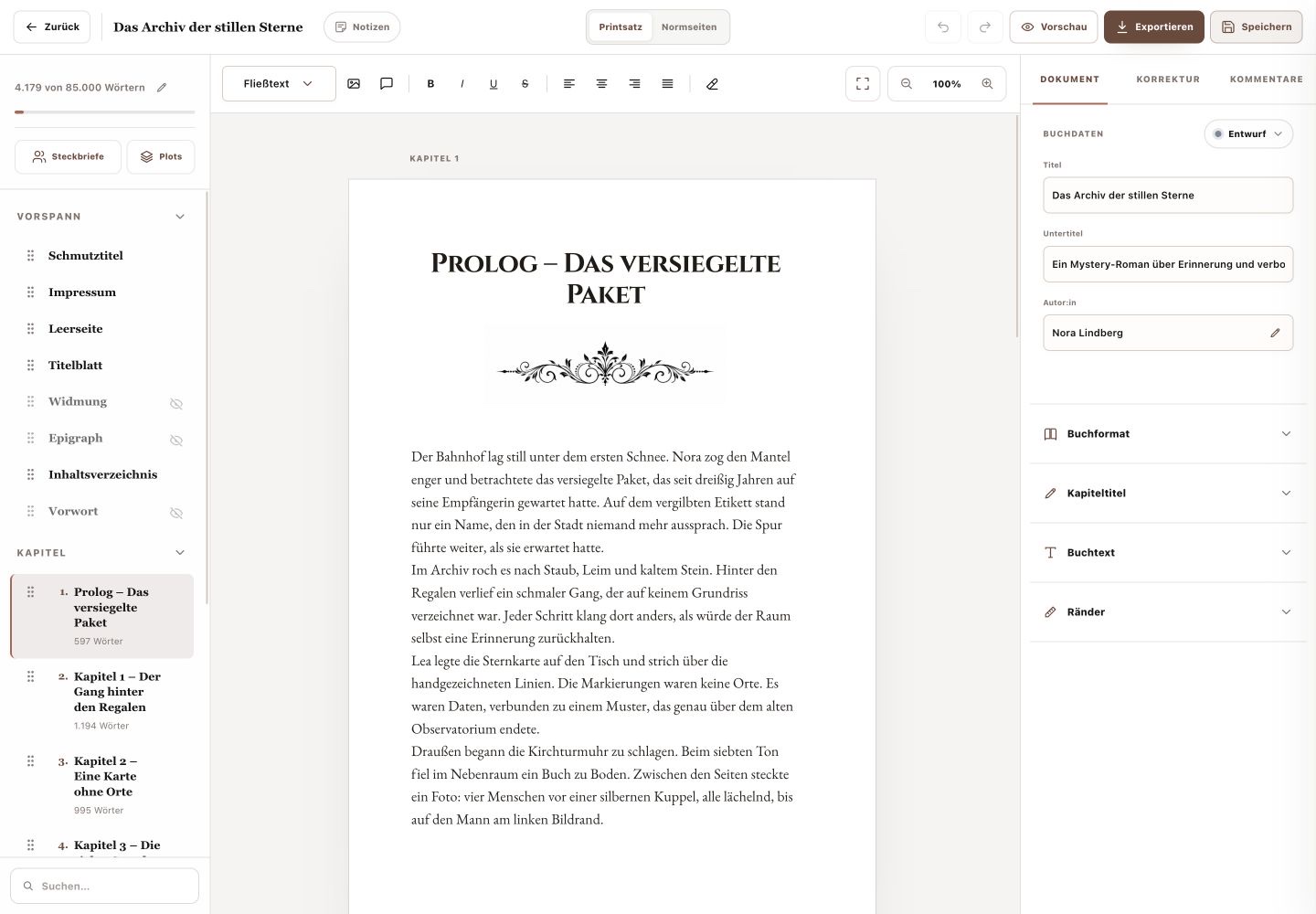
The export dialog creates files from book data already set in the writing studio. Typesetting is not configured for the first time inside the export dialog.
1. Prepare the book design
Before exporting, open “Document” on the right and review “Book Format”, “Chapter Titles”, “Book Text” and “Margins”. Also check which front- and back-matter items are visible. Use “Preview” at the top of the studio for a visual check.
2. Choose the right format
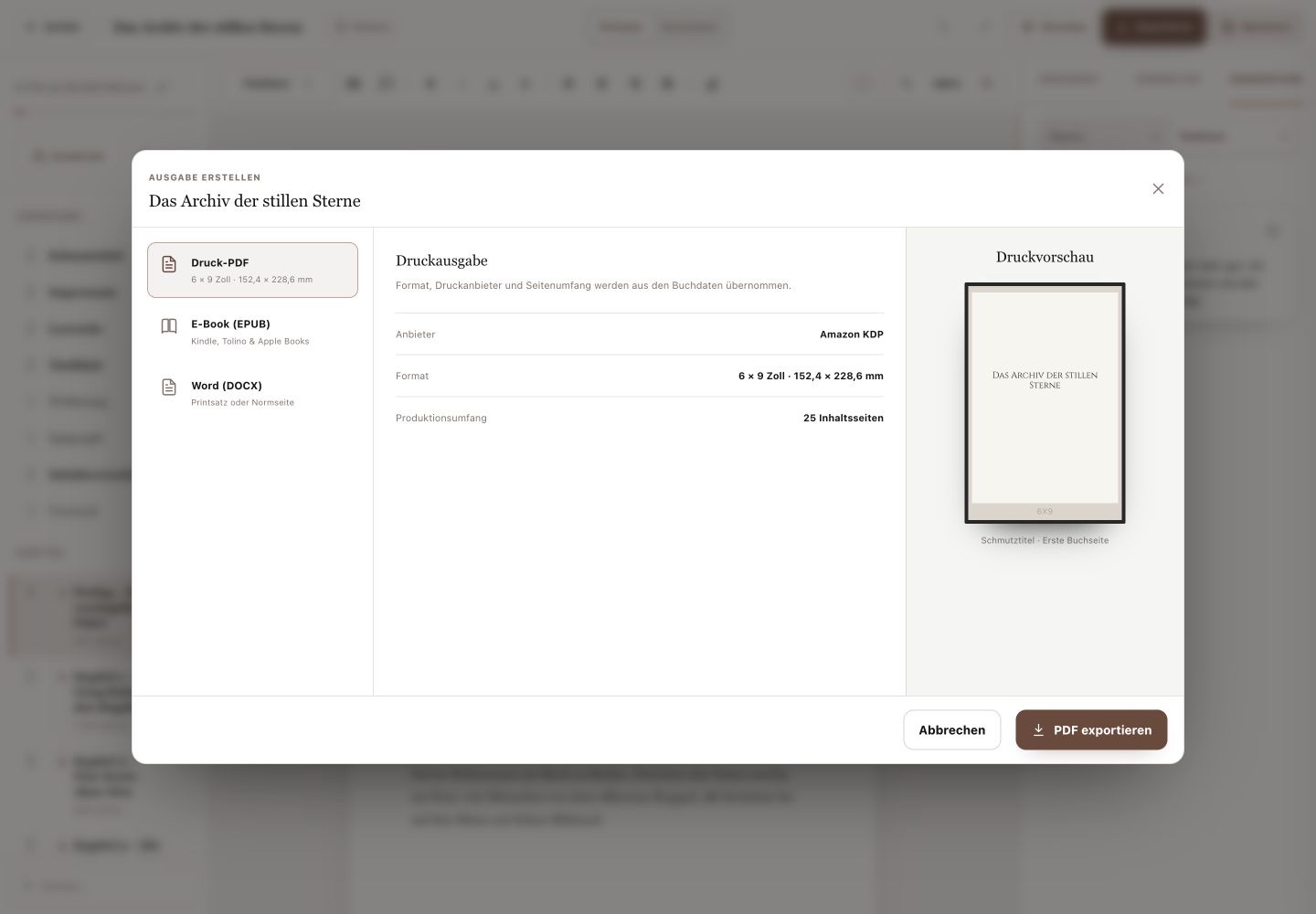
“Print PDF” creates a fixed-layout print file. “E-book (EPUB)” is intended for Kindle, Tolino and Apple Books. “Word (DOCX)” is available as print layout or standard manuscript pages for further editing.
- For print PDF, format, print provider and page count come from the book data.
- The export dialog shows these inherited values and a print preview.
3. Create and inspect the file
Select the format and start the available export. Open the download and inspect the title page, chapter openings, scene breaks, special characters, page numbers and final page. Compare a print PDF with your printer's current requirements as well.
You selected the correct output and reviewed the actual finished file.