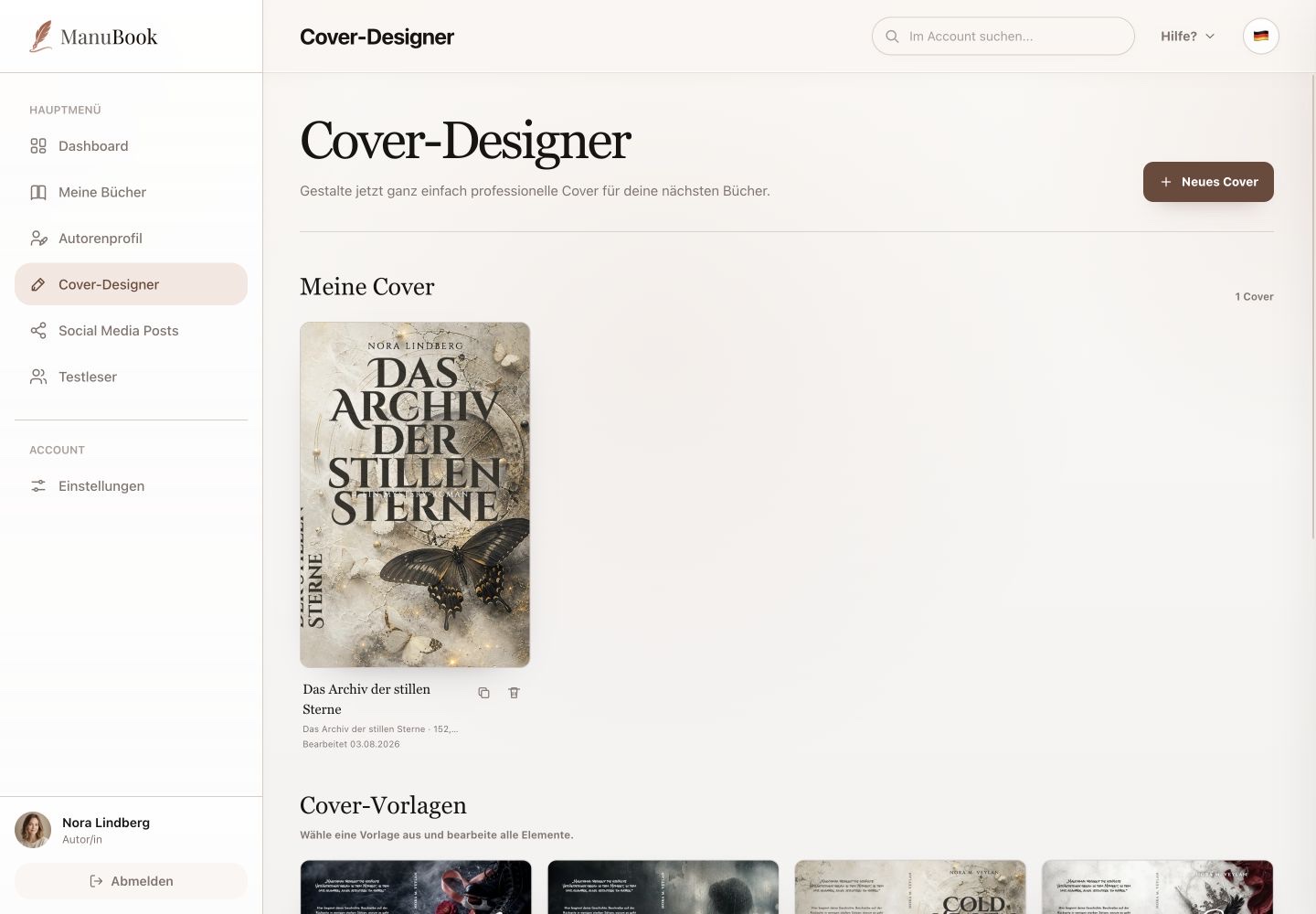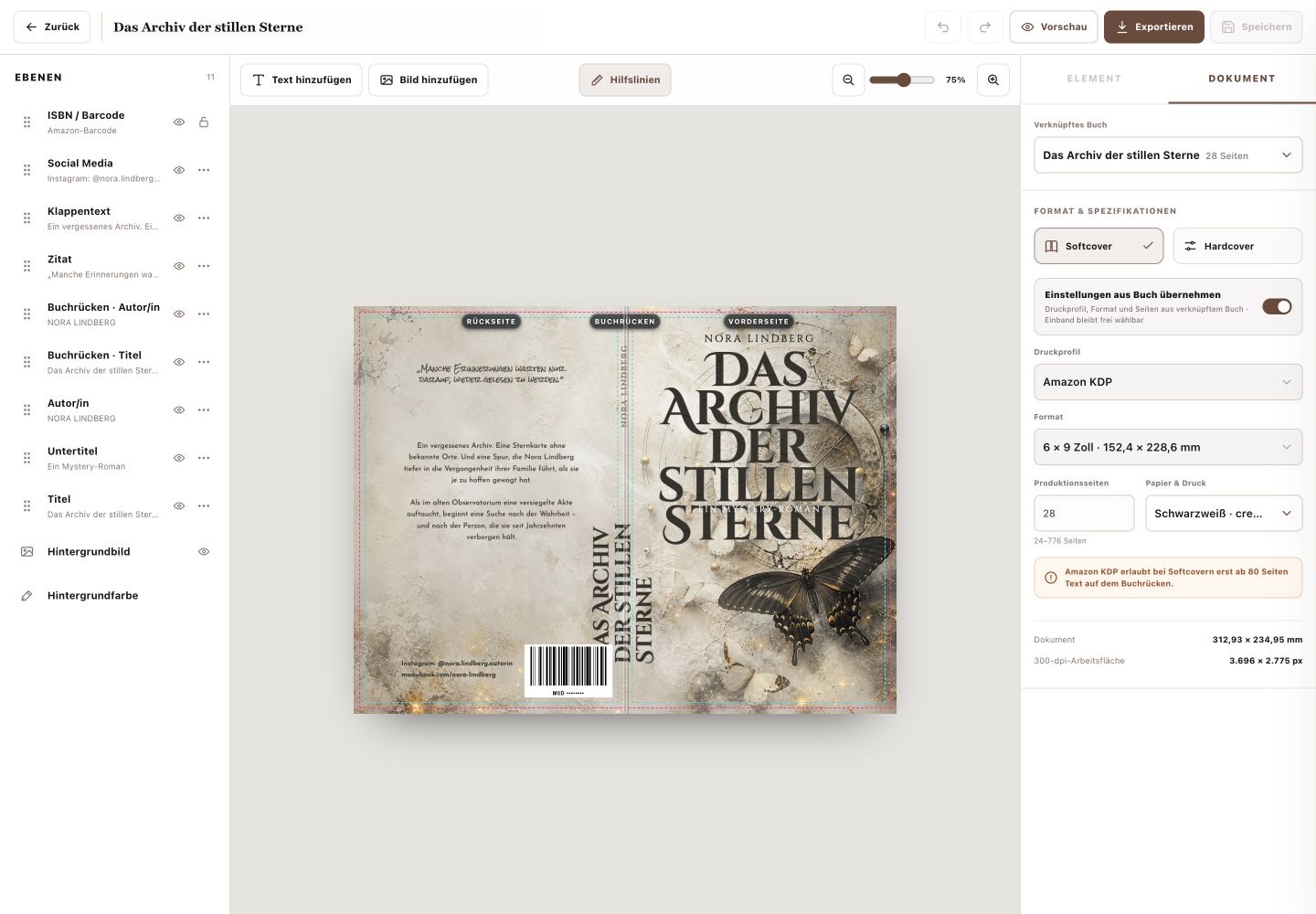
Preview and export are separate actions. Preview shows an interactive 3D book; Export opens the available file formats.
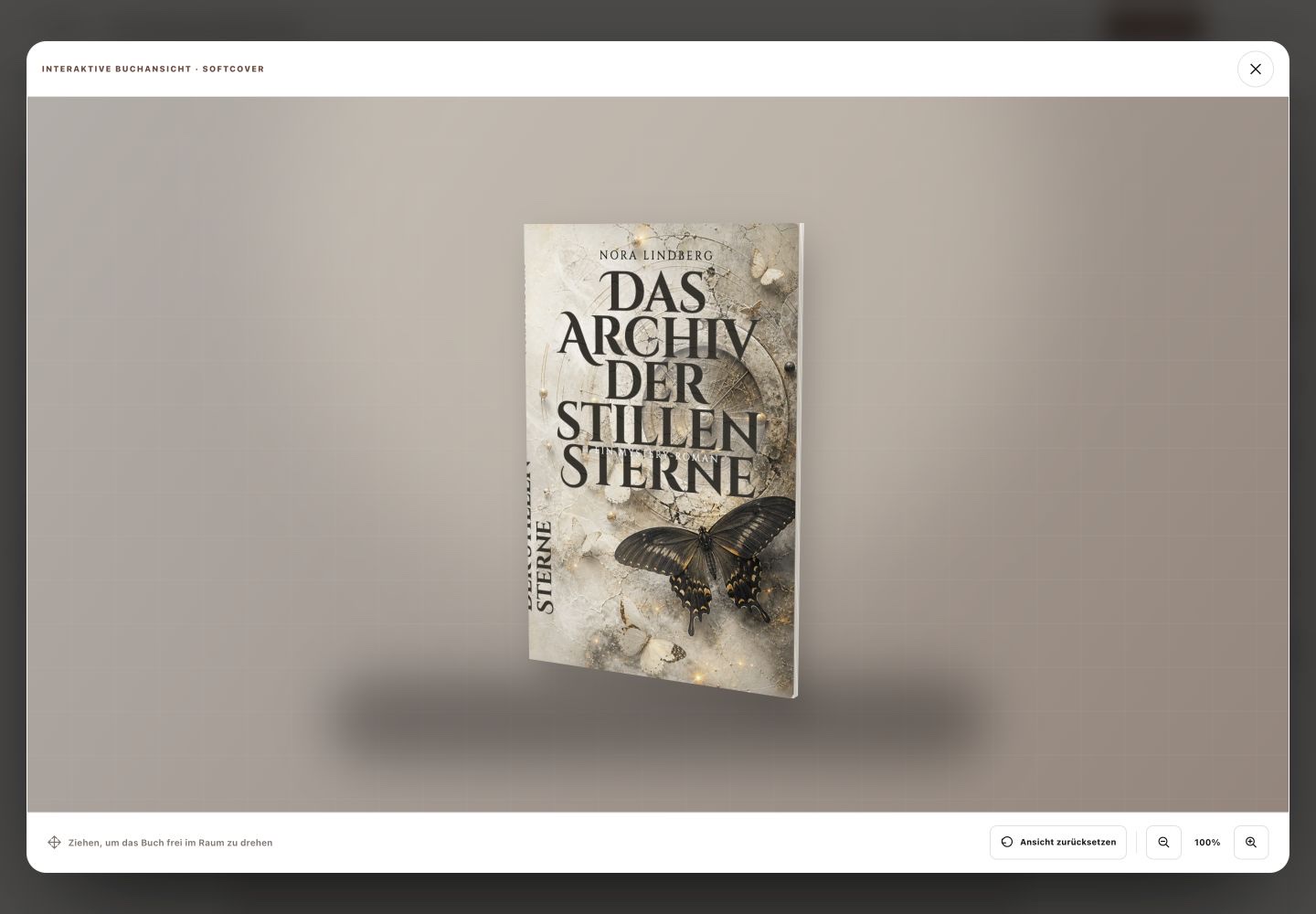
1. Use the 3D preview
Select “Preview”. Drag the book to rotate the paperback or hardcover freely. “Reset view” returns to the starting position; minus and plus change preview size.
2. Review back, spine and front
Check background transitions, spine reading direction, text spacing and the impact of the front. The 3D view is a visual book preview; it does not replace checking the flat print file and the printer's requirements.
3. Choose the export format
“Print PDF” creates a 300-dpi file for KDP, epubli or a printer. “PNG” exports the full canvas losslessly. “JPG” creates a high-quality 300-dpi preview. Choose the format for its next use and open the generated file to inspect it.
You reviewed the three-dimensional appearance and selected the appropriate cover format.