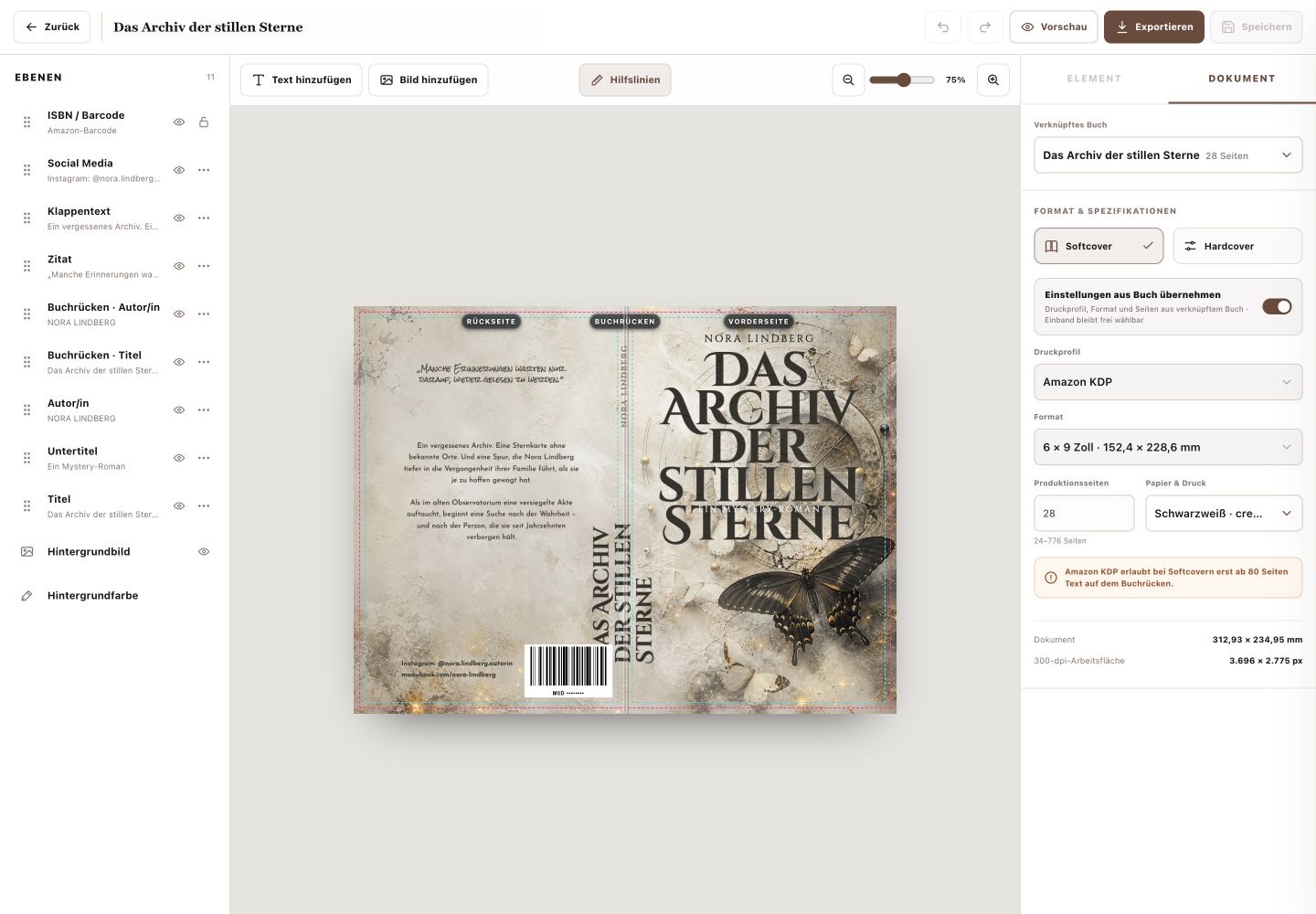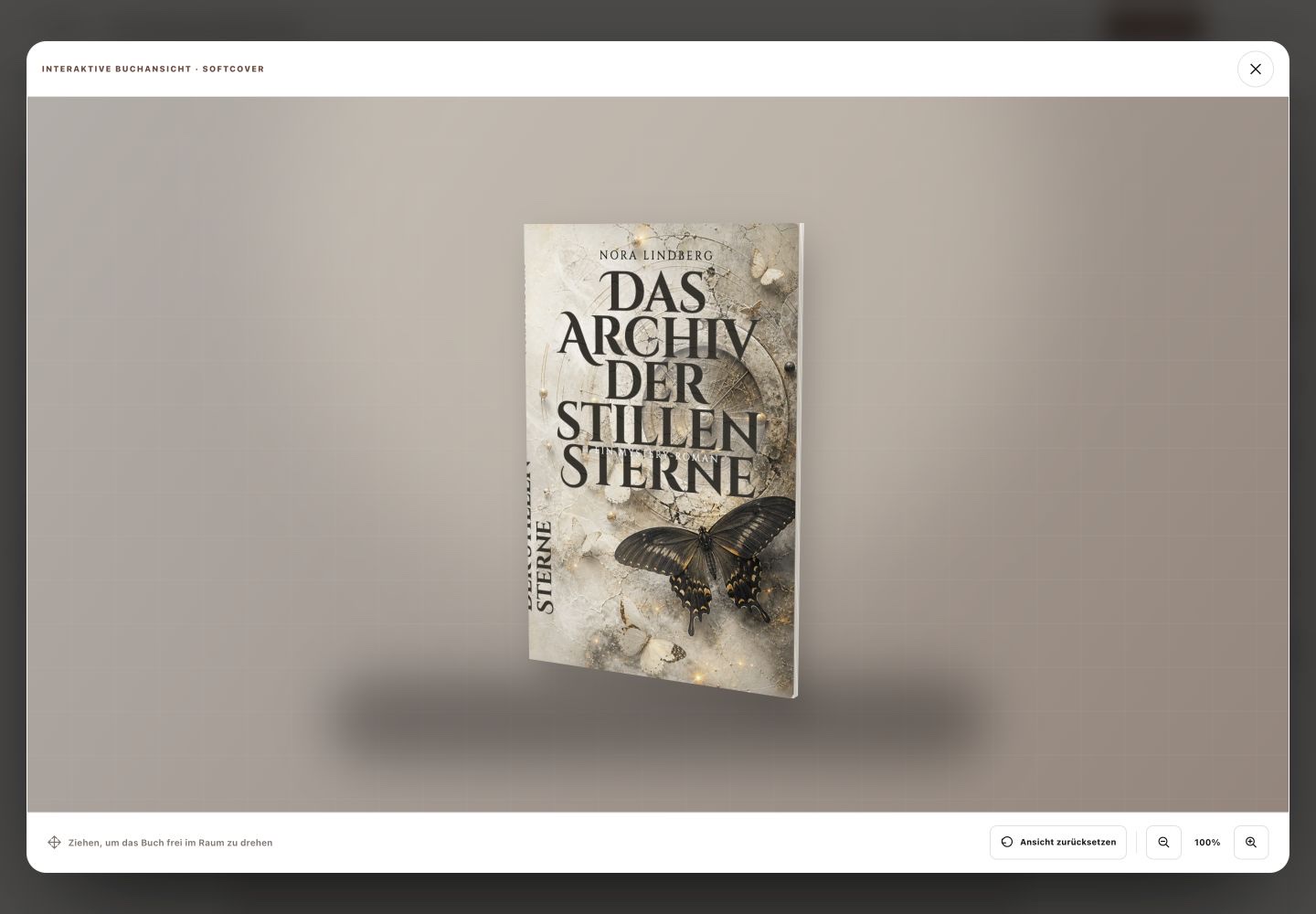
The Cover Designer starts with a library. Your saved drafts appear first, followed by complete templates with back, spine and front.
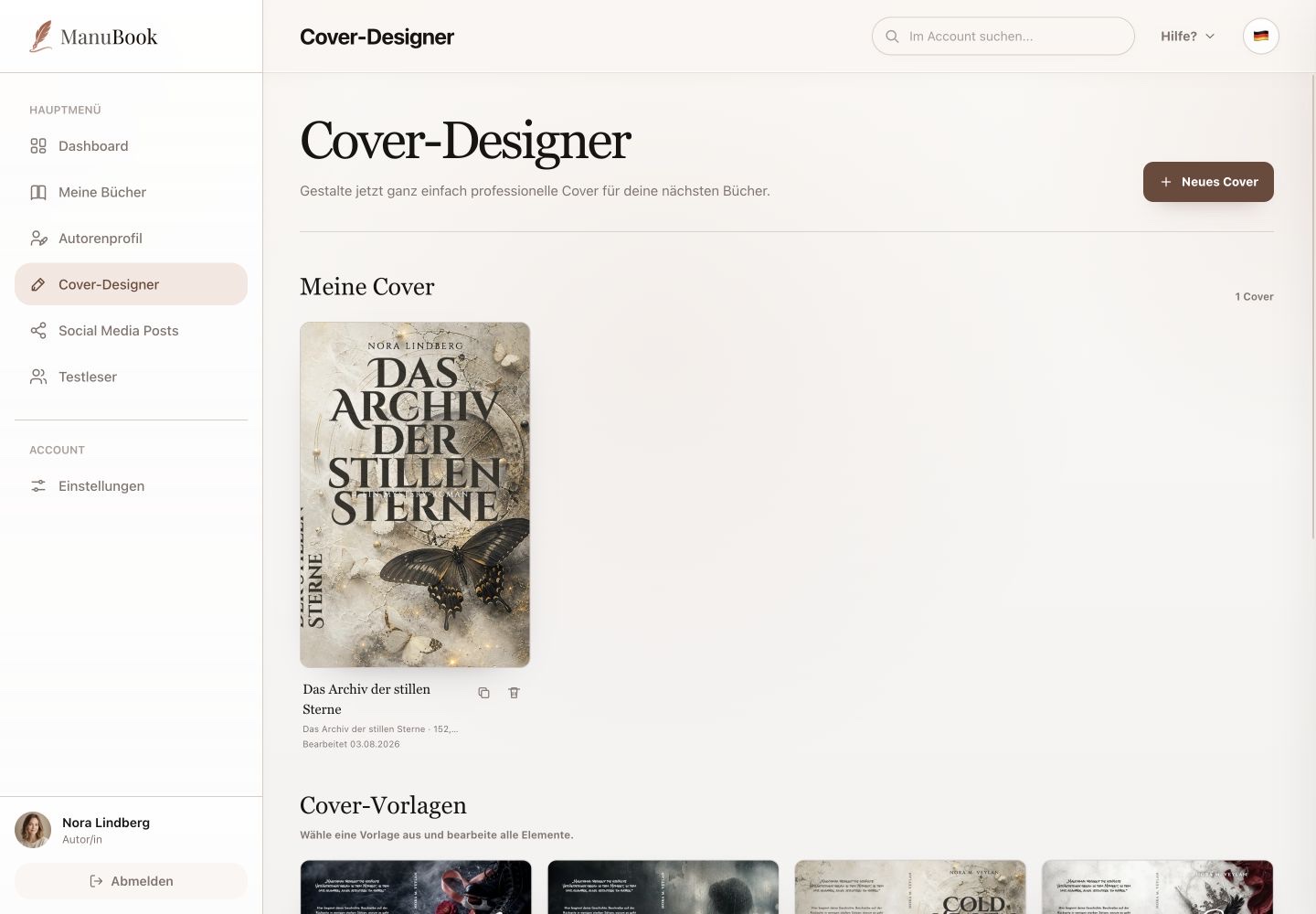
1. Continue a draft
Select the preview or “Continue editing” to open a saved draft. Its card shows the name, linked book, format and last edit date.
2. Manage drafts
Actions beside a cover let you duplicate or delete it. The copy is created without a book link and is useful for a variation without changing the original. Check the card name carefully before confirming deletion.
3. Start from a template
“New Cover” takes you directly to the template section on the same page. Select “Use template”. In the next dialog, choose a book to inherit its print profile, trim size and page count, or continue without a book and configure the draft manually. All template layers remain editable. “New Cover” does not create a separate blank draft.
You can continue a saved draft or choose a suitable template as your starting point.