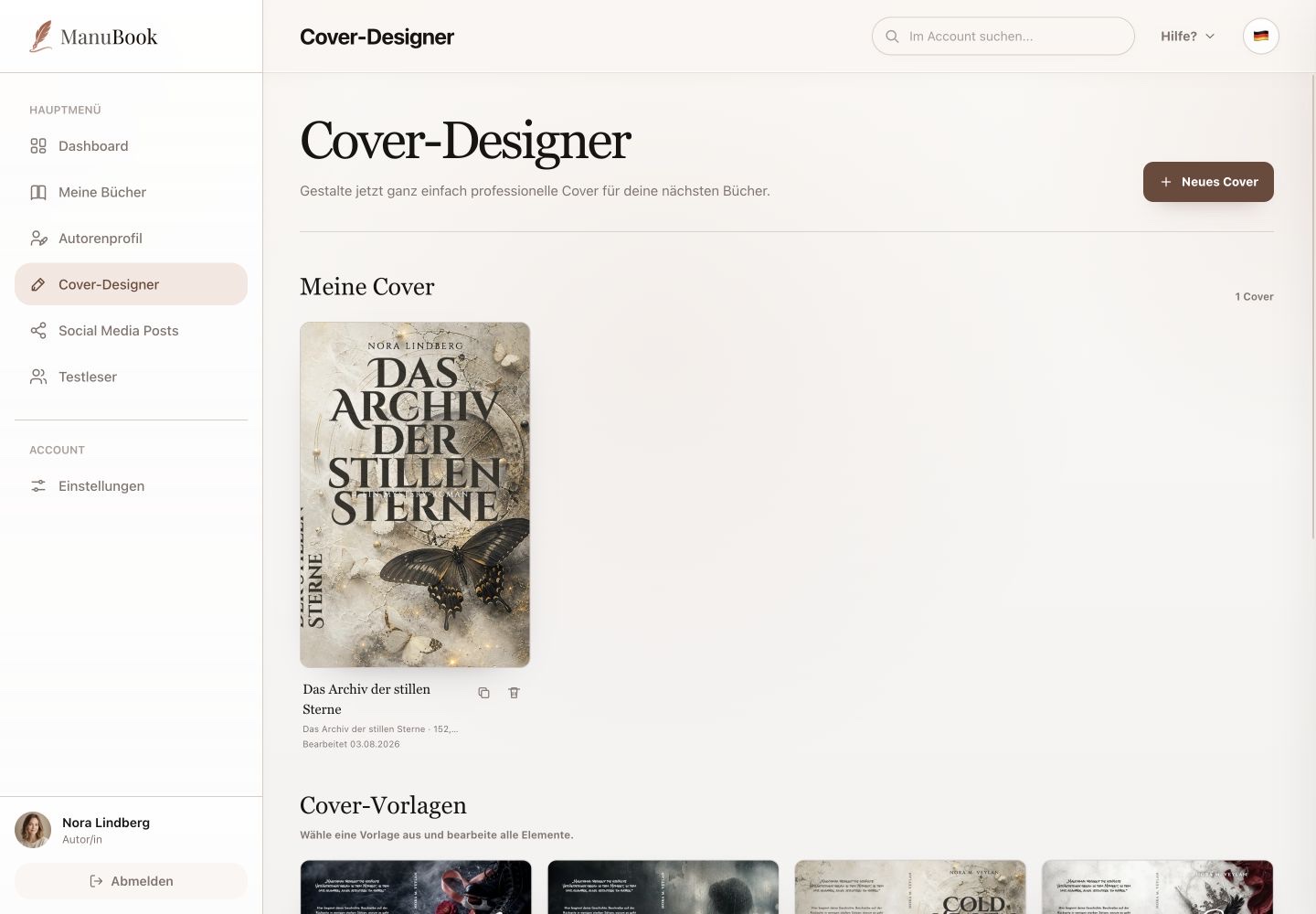
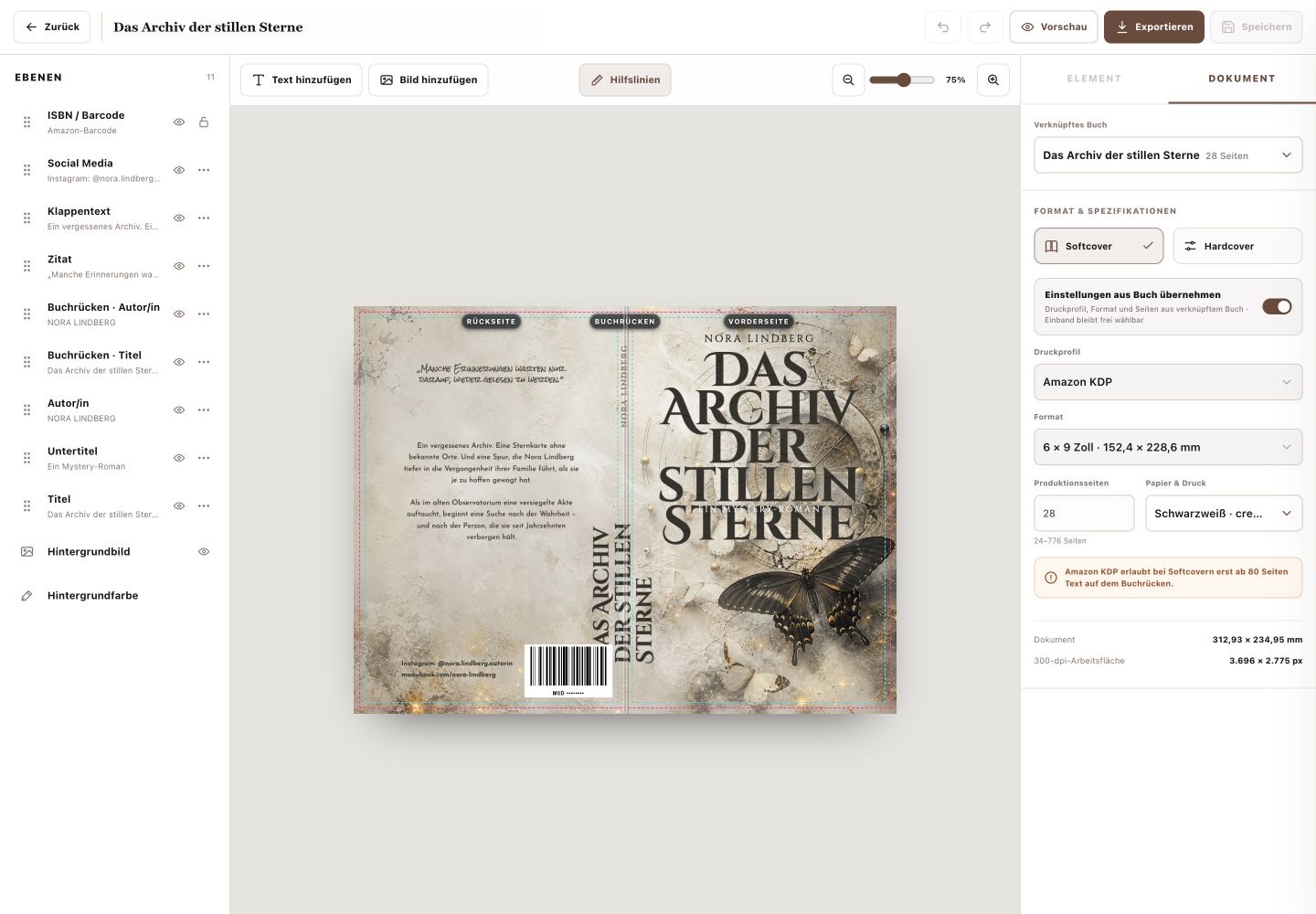
The editor displays the complete wrap: back, spine and front. Layers are on the left, the canvas in the centre, and element or document data on the right.
1. Select and arrange layers
The layer list can include title, subtitle, author, spine text, blurb, social media, barcode, background image and background colour. Layers can be moved, shown or hidden and, depending on the layer, edited through further actions.
2. Add text or an image
“Add Text” and “Add Image” create new elements. There is no general shape editor. Select an element on the canvas or in the layer list; the “Element” tab shows its editable properties.
3. Set print specifications
In “Document”, link a book and choose paperback or hardcover. “Inherit settings from book” uses its print profile, trim size and production pages; paper and print remain selectable. Document size and the 300-dpi canvas appear below.
- “Guides” shows or hides alignment guides.
- Zoom changes the view, not export size.
- Use “Save” to store changes.
Your wrap is structured correctly and aligned with the book's print specifications.