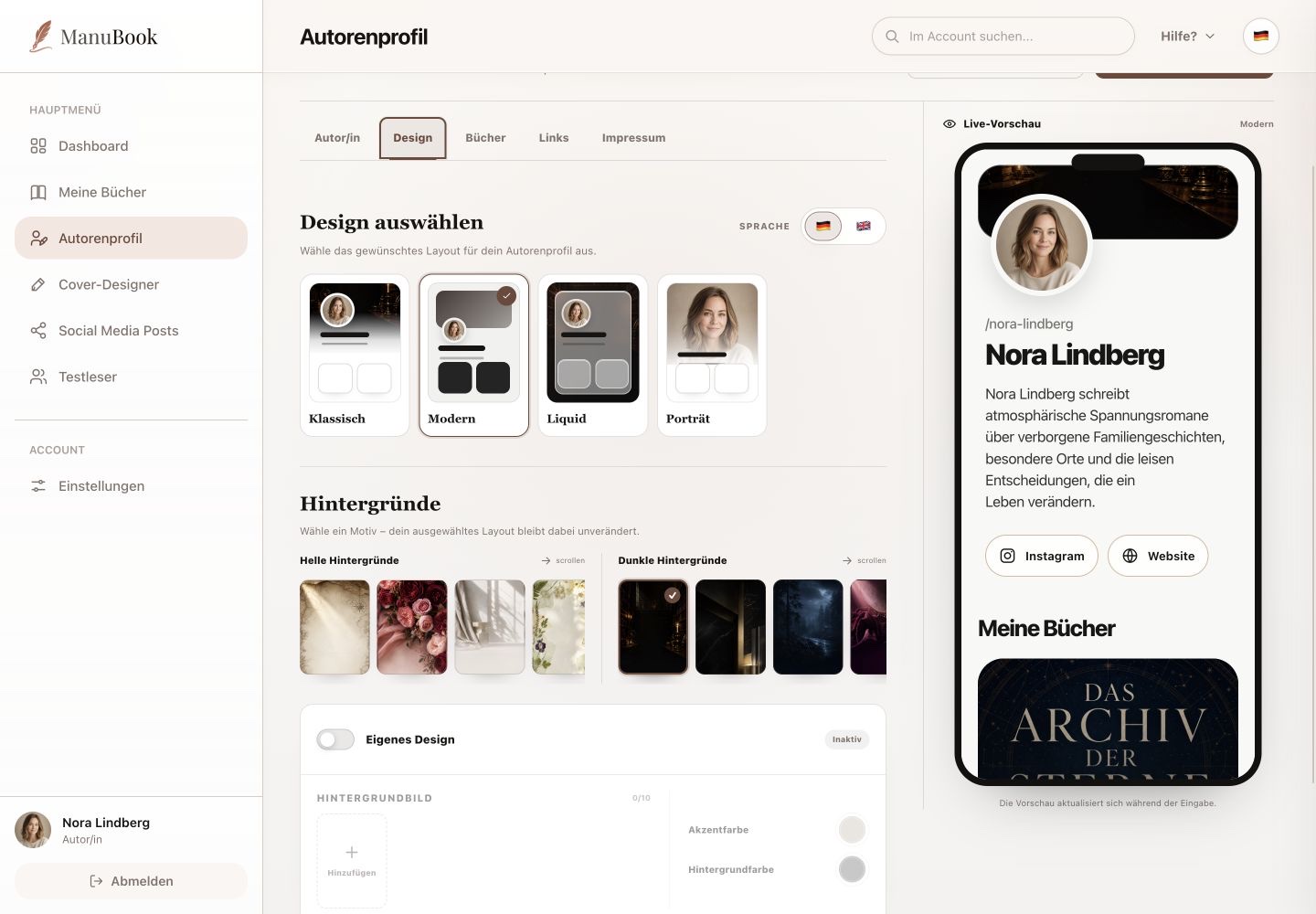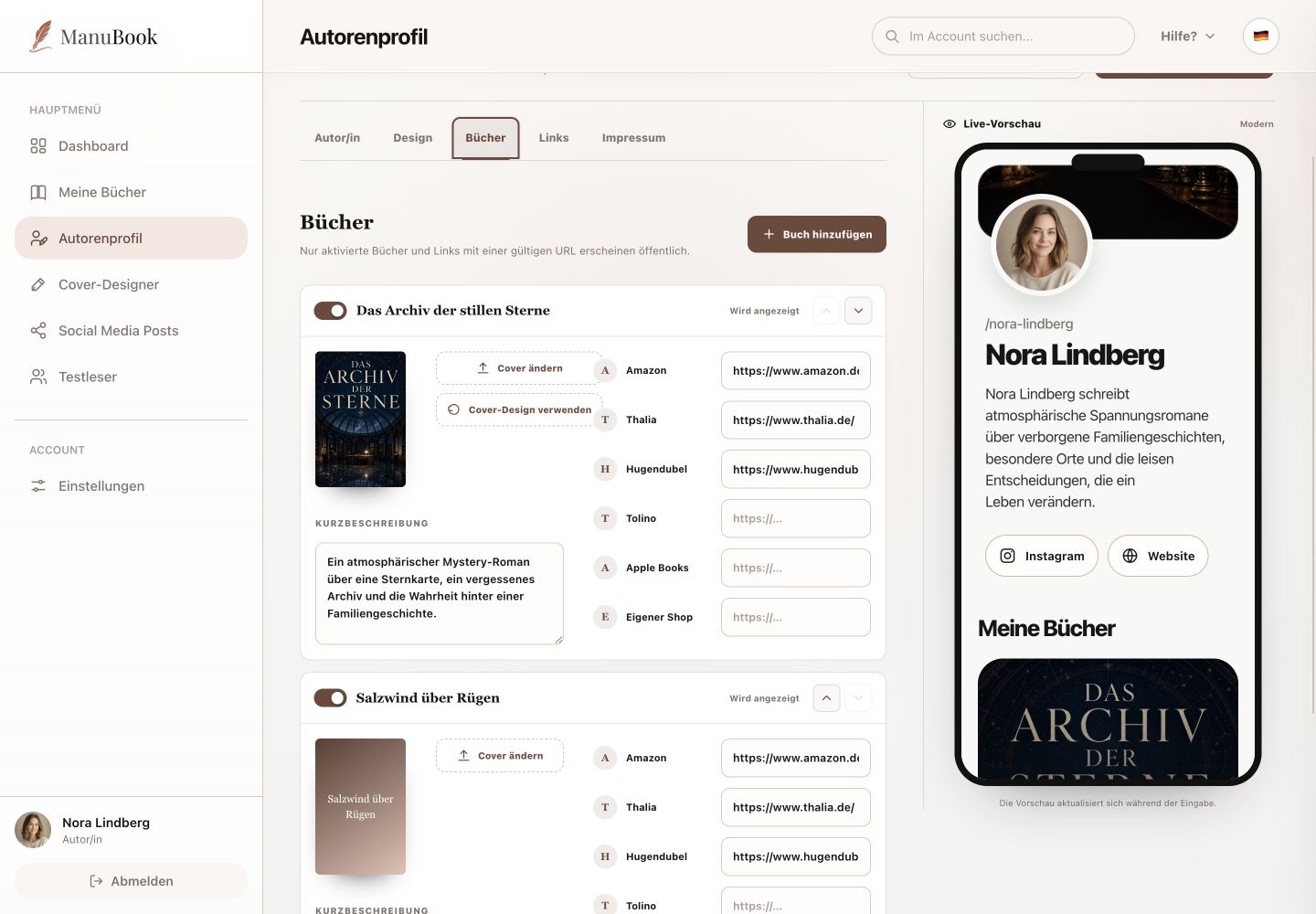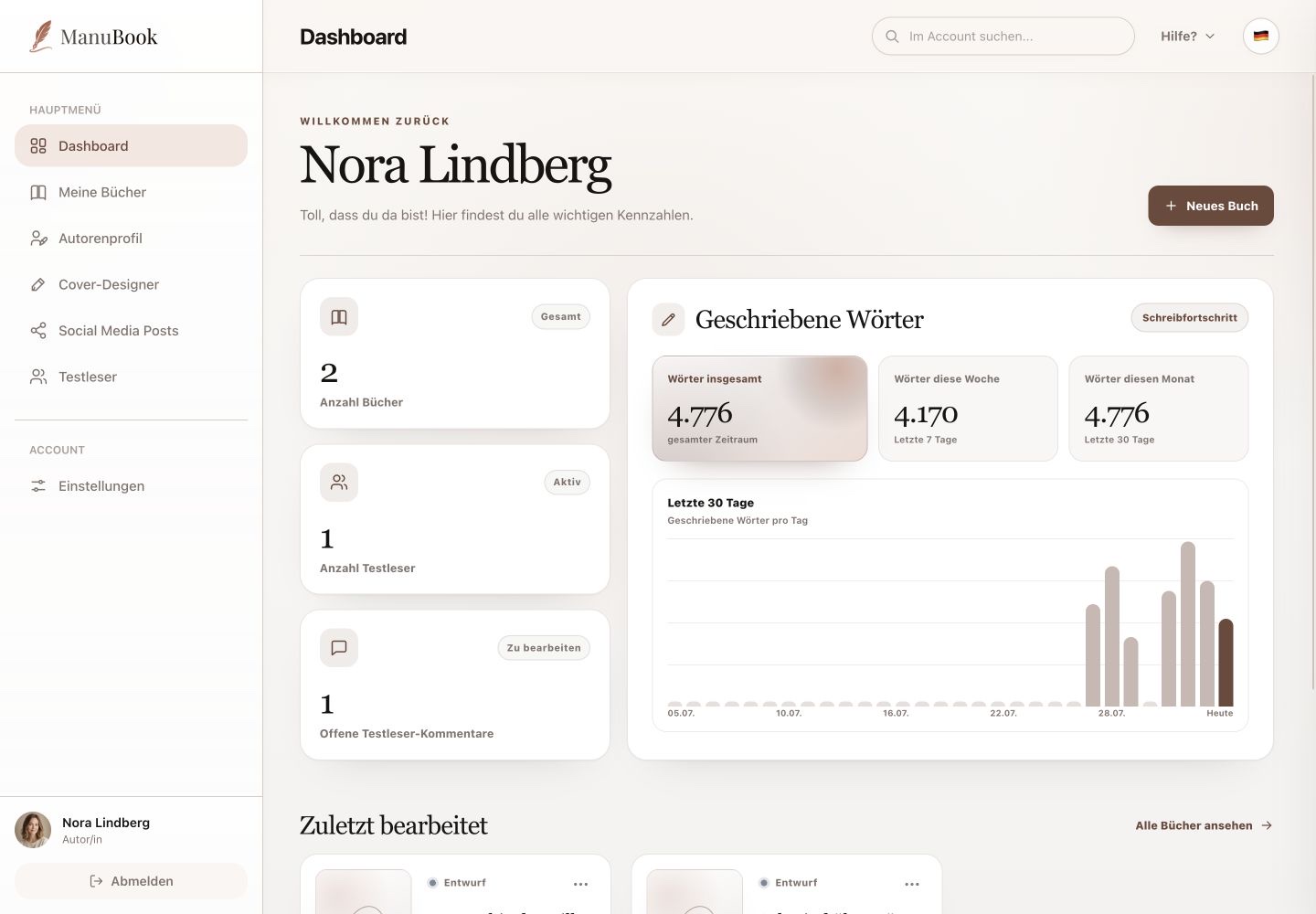
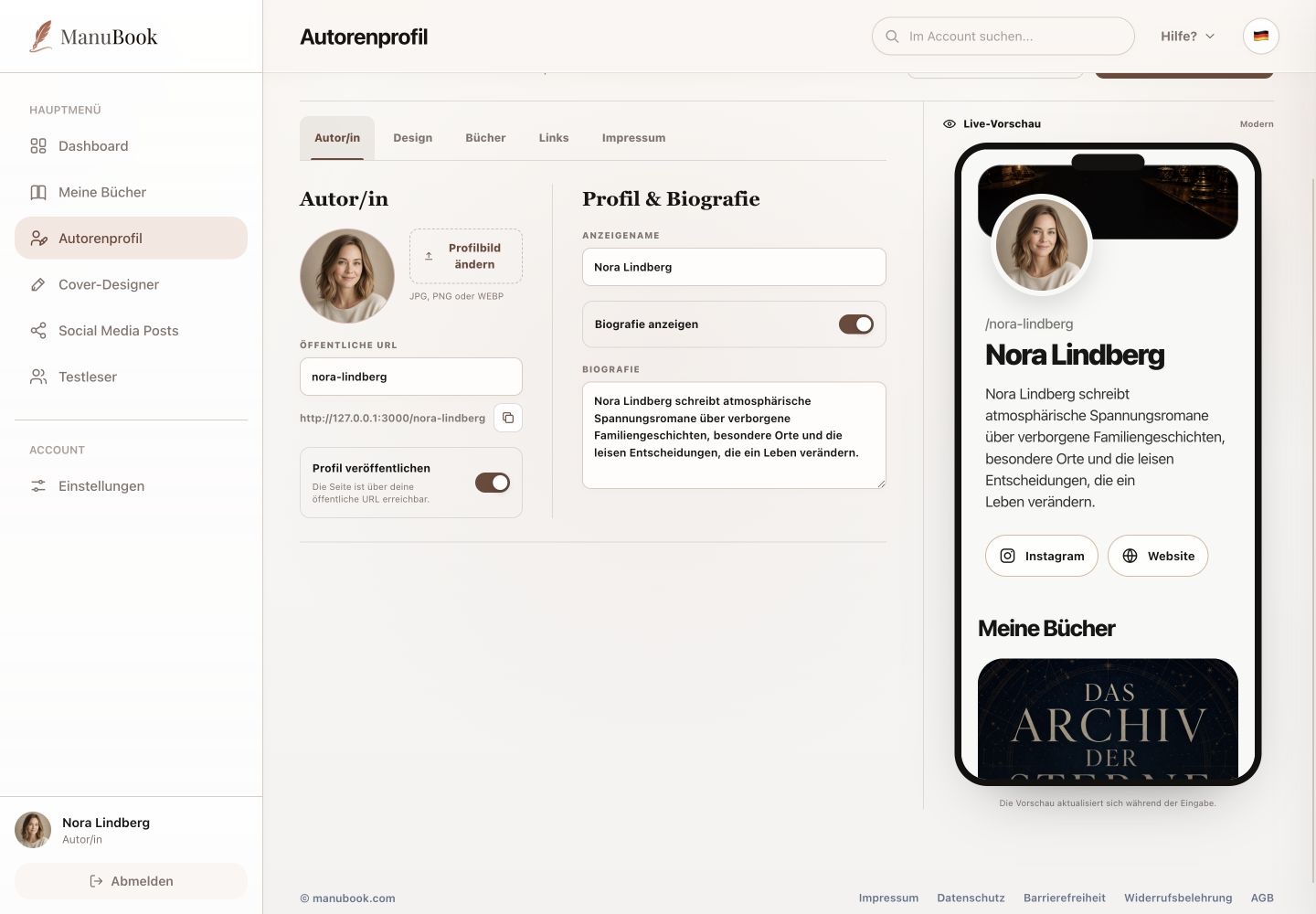
The “Author” tab contains the basics of your public author page. A live preview on the right reflects changes while you type.
Menu pathAuthor Profile → Author
1. Set portrait and URL
Use “Change portrait” to upload a JPG, PNG or WEBP image. The “Public URL” field controls the last part of your profile address, and the full URL can be copied.
2. Control publication
“Publish profile” determines whether the page is available at its public URL. Use “View author profile” to open the saved public page separately.
3. Manage name and biography
The display name appears publicly and is also linked from the book workspace. “Show biography” controls whether the biography appears. Enter the text, review the live preview and then select “Save changes”.
- Check the display name.
- Write the biography and choose visibility.
- Select “Save changes”.
Done
Your core profile data is saved and the page's availability is intentionally configured.