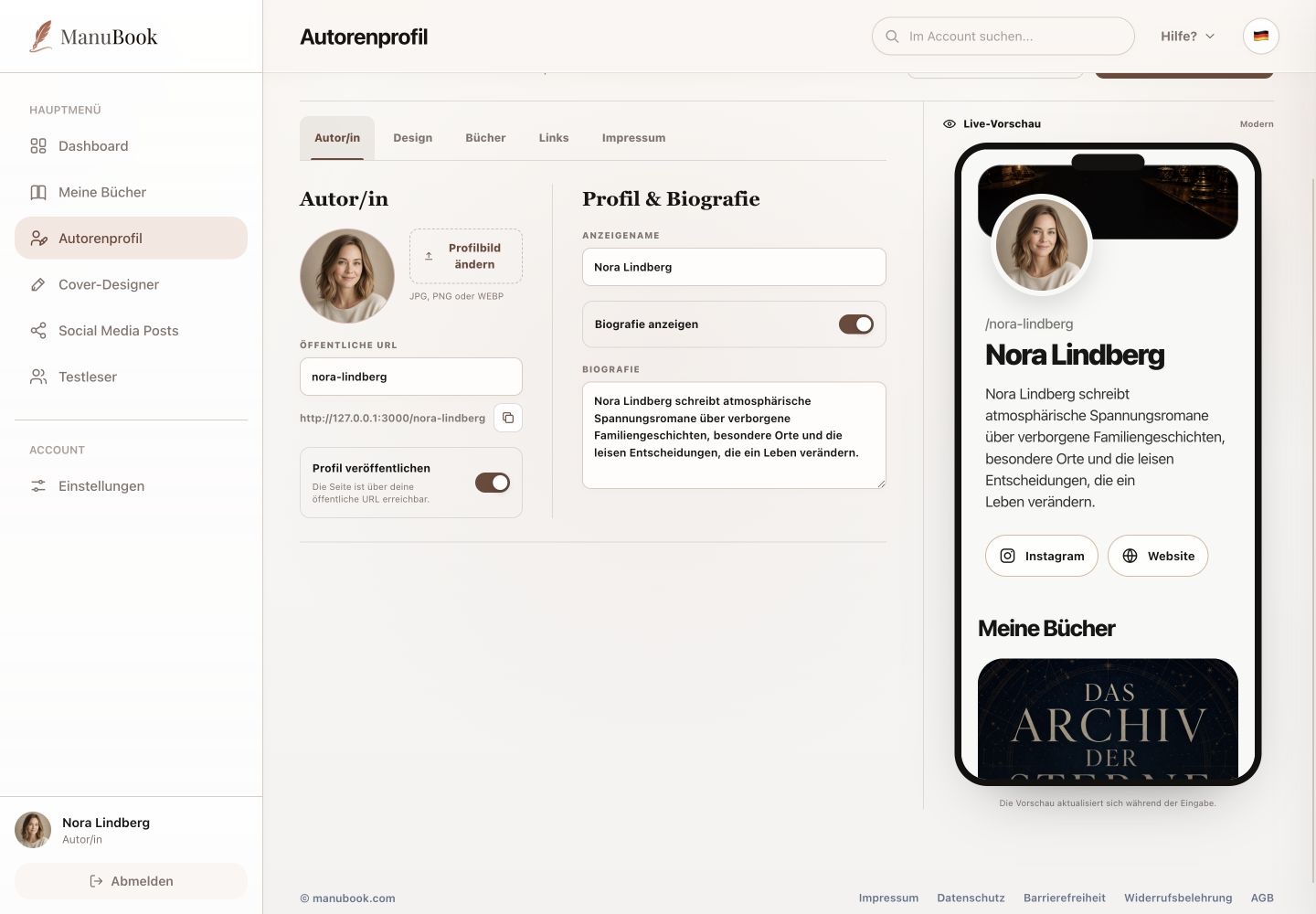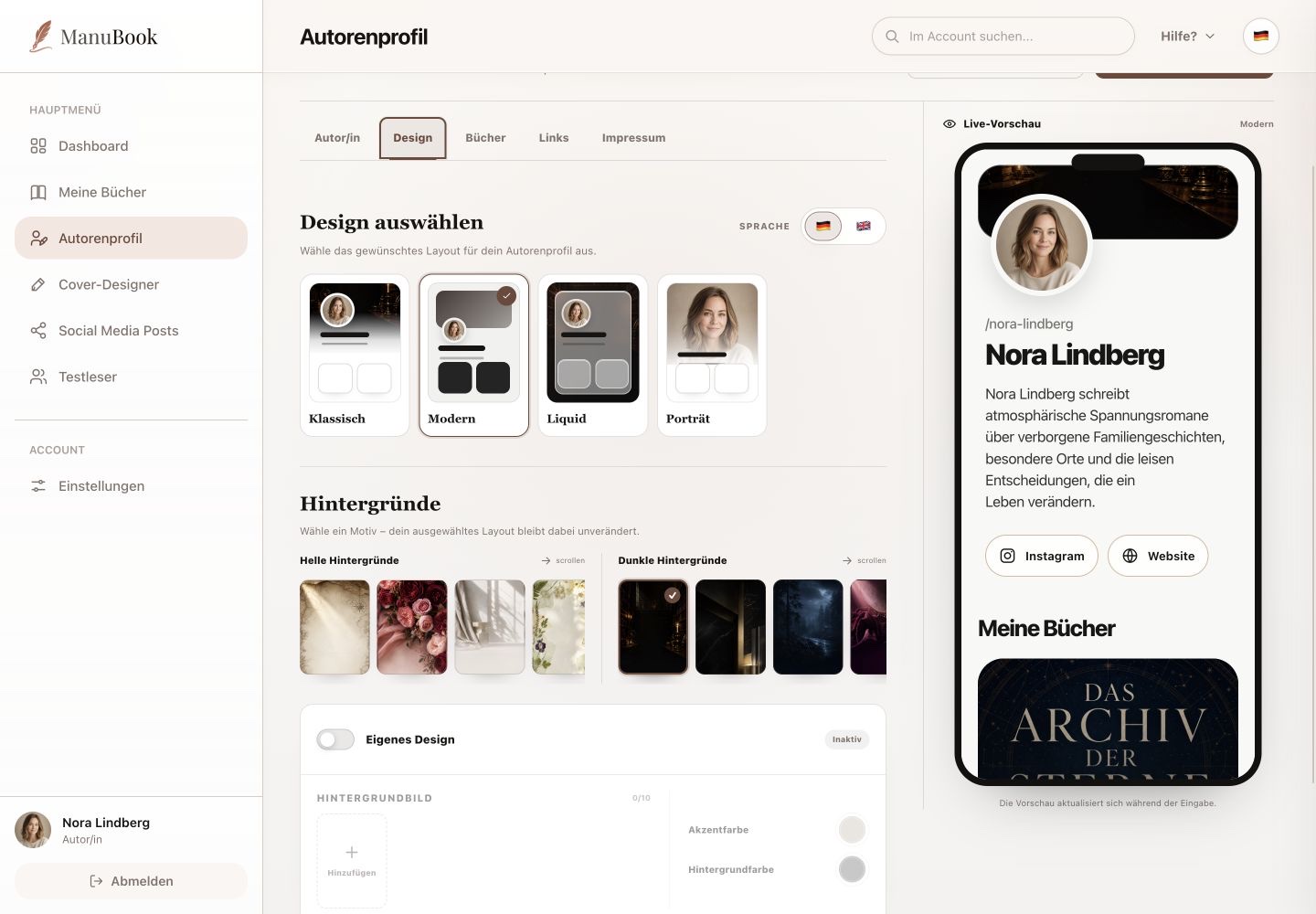
Public content is divided across three tabs: books with purchase links, custom and social links, and the legal notice.
1. Choose and arrange books
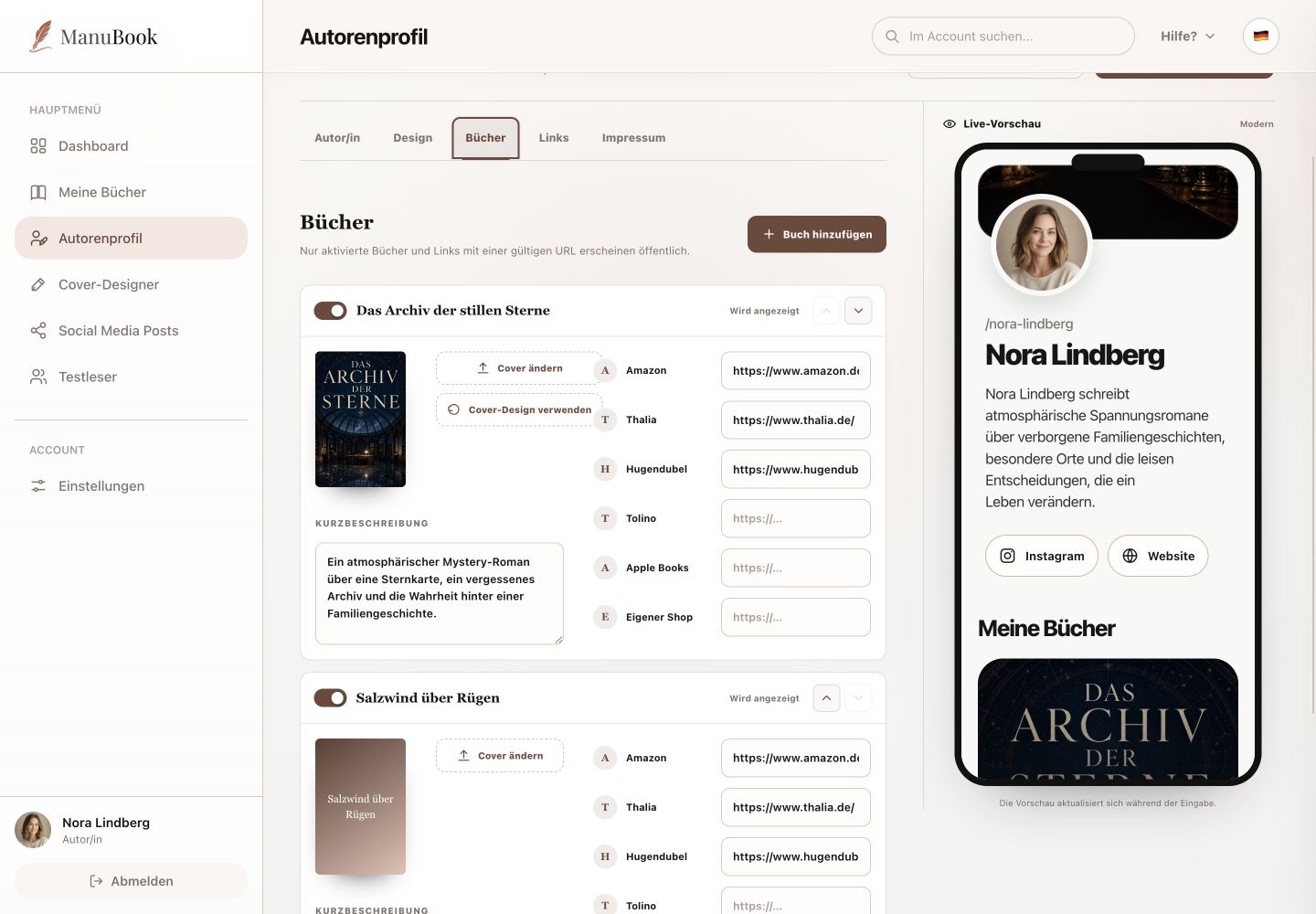
In “Books”, use “Add book” to include a project. Each book's switch controls public visibility and the arrow actions change order. You can upload a cover or use an existing Cover Designer project.
2. Manage descriptions and purchase links
Add a short description and, where needed, a label and URL for Amazon, Thalia, Hugendubel, Tolino, Apple Books or your own shop. Only enabled books and links with a valid URL appear publicly.
3. Add more links and legal details
Under “Links”, create custom links such as a newsletter or events and enter profiles for Instagram, Facebook, TikTok, YouTube, X, Threads or your website. Icons appear only for completed profiles. Manage profile legal details in the separate “Legal Notice” tab, then save changes centrally.
Your author page shows only the intended books and working links.