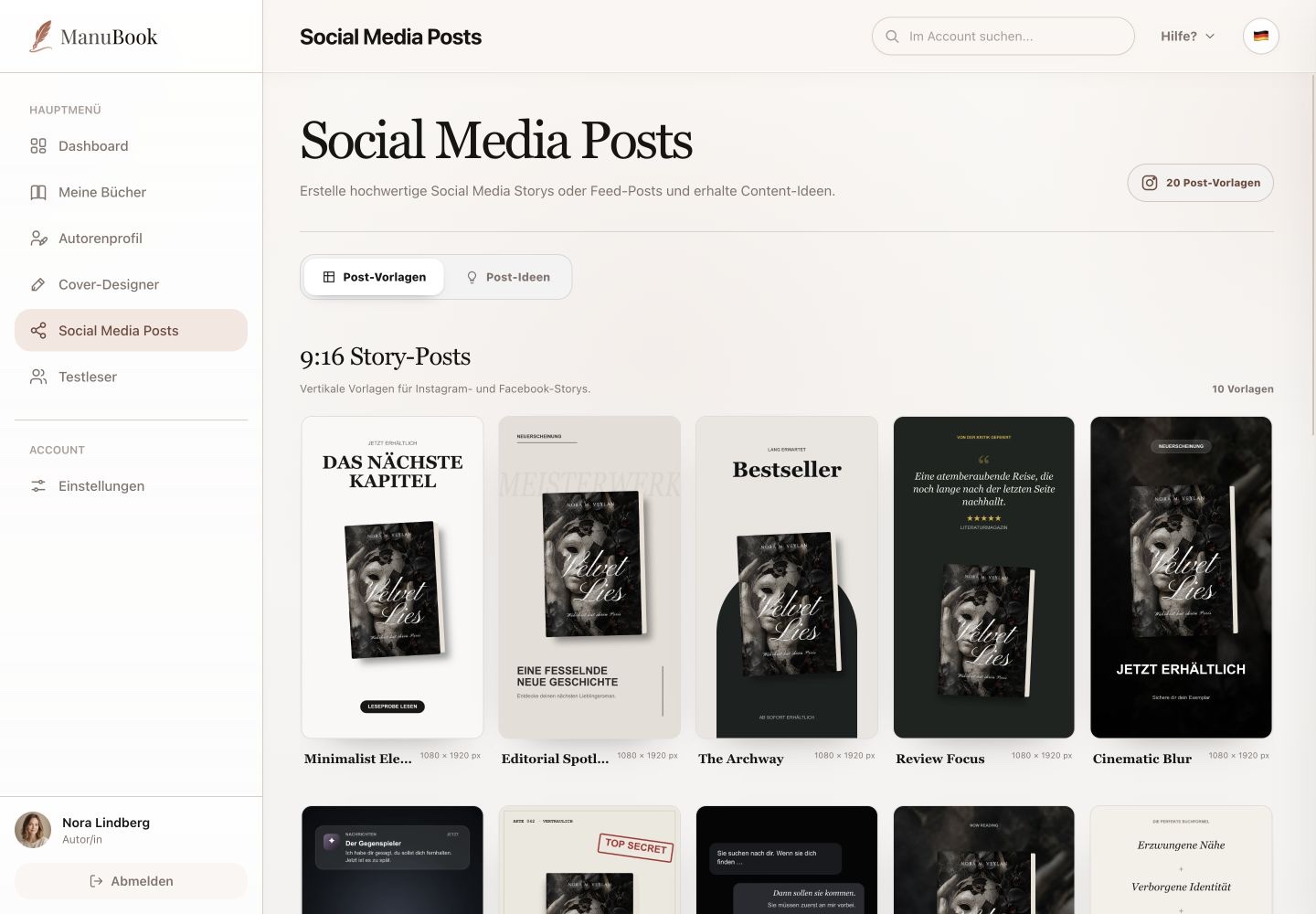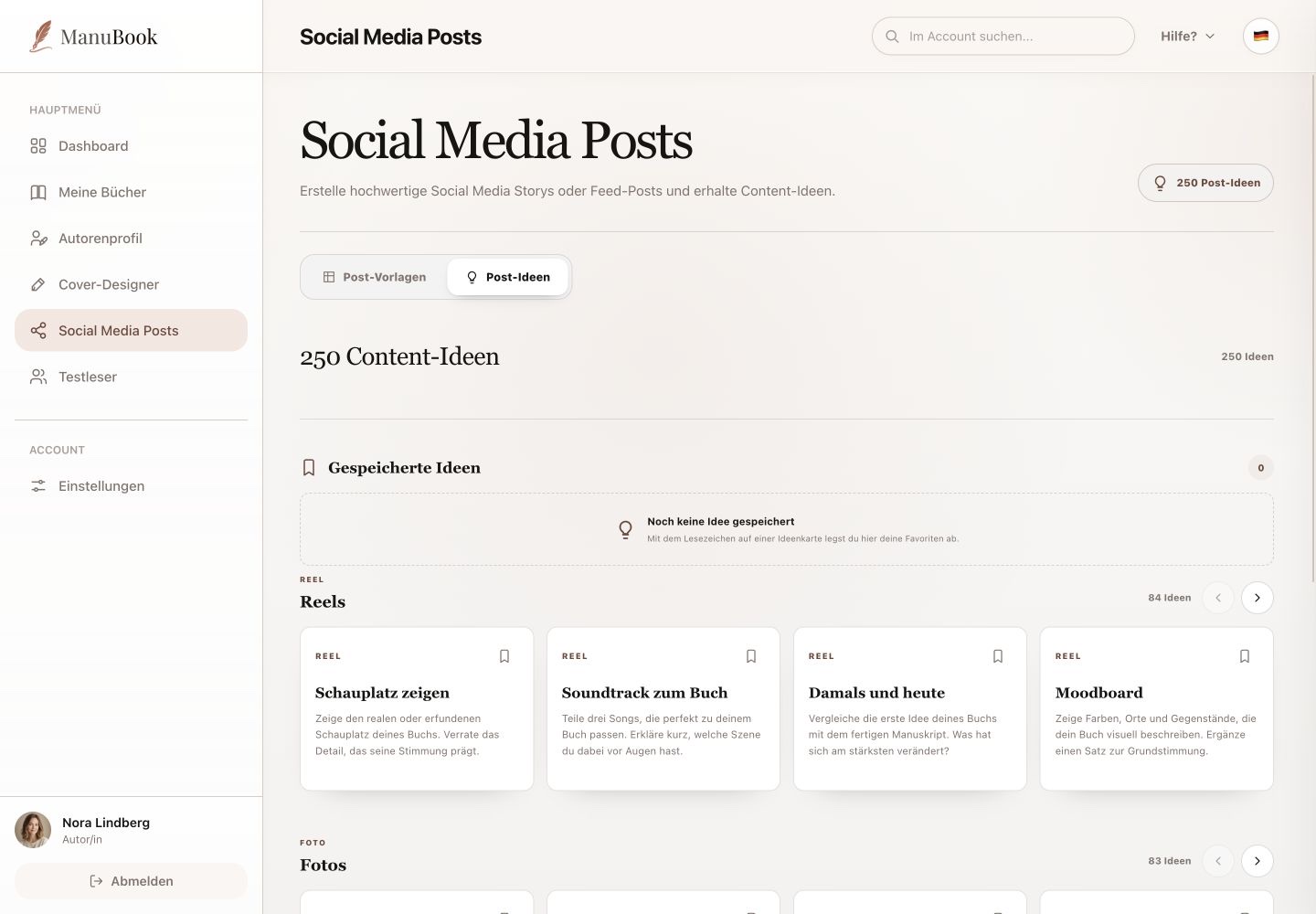
The post editor changes the content of the selected template. Available text fields depend on its layout.
1. Choose book and cover
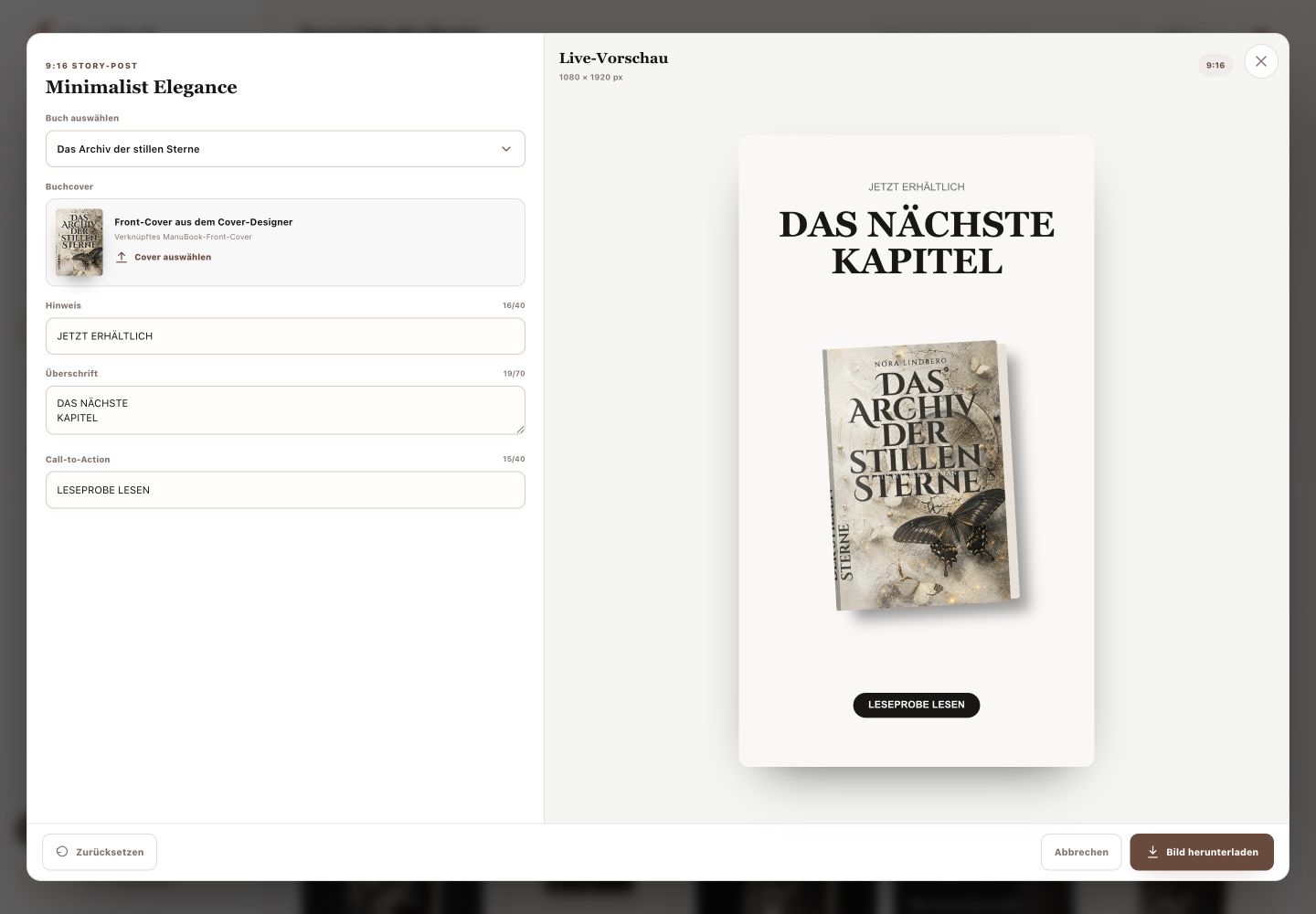
Use “Choose book” to select a project. The editor can use the current book cover or a linked front cover from Cover Designer. Use “Choose cover” to upload another image when needed.
2. Edit template text
Change the fields provided by the template. Minimalist Elegance, for example, has label, heading and call-to-action; other templates may require different content. Character counters show the allowed length. Colours and free-form layers are not edited here.
3. Preview and download
The live preview updates while you type and shows format and pixel size. “Reset” restores the template's starting text. “Download image” creates the finished graphic; there is no saved-drafts section here.
- Review the complete preview.
- Select “Download image”.
- Open the file and check text, cover and margins.
You created a template image with your book and text and reviewed the file.